 VedaWatch
Recovery & Apple Watch
Apple Watch hypertension notification: how it works, what to do
What an Apple Watch hypertension notification means, which watches and regions support it, how accurate it was in the FDA study, and the 7-day cuff check to do next.
By VedaWatch editorial team · · 9 min read
The short answer
A hypertension notification means your Apple Watch saw patterns in 30 days of optical heart sensor data that are linked with high blood pressure. It isn't a diagnosis and gives no blood pressure number. Apple's next step: measure with an upper-arm cuff twice a day for 7 days and share the log with your doctor.
What does an Apple Watch hypertension notification mean?
It means your watch's software flagged a pattern, not that you have been diagnosed with anything. Apple's hypertension notification feature looks at data from the optical heart sensor over a 30-day period and alerts you if it sees consistent signs that are associated with chronic high blood pressure (hypertension).
The watch does not measure your blood pressure and never shows you a reading like 135/85. The FDA's summary of the feature describes its output as a notification that the user may have hypertension. The only way to find out what your blood pressure actually is, is to measure it with a cuff, which is exactly what Apple asks you to do next.
Hypertension matters because it usually has no symptoms. The WHO estimates that about 1.4 billion adults aged 30 to 79 had hypertension in 2024, and that around 600 million of them (44%) don't know it. A passive check on a watch you already wear is meant to nudge some of those people toward a proper measurement.
How Apple Watch detects possible high blood pressure
Apple describes the feature as using the optical heart sensor to analyze how your blood vessels respond to each heartbeat. That sensor signal is called photoplethysmography (PPG), the same green-light signal the watch uses for heart rate. The FDA summary says the PPG data is collected opportunistically, so you don't start a measurement and there's nothing to tap once it's set up.
The analysis runs in 30-day evaluation periods that start on the day you turn the feature on. That means you won't hear anything in the first days, and a single bad day can't trigger it on its own: the algorithm looks for a pattern across the month.
Under the hood is a machine learning model. According to Apple's FDA submission, a deep learning model was first trained on unlabeled Apple Watch sensor data from over 86,000 participants, and a second model that makes the actual hypertensive or non-hypertensive call was trained on watch data plus home blood pressure measurements from over 9,800 participants. Apple's newsroom rounds this up as studies with over 100,000 participants.
Which Apple Watch models and countries support it?
Apple announced hypertension notifications with Apple Watch Series 11 in September 2025, and the FDA cleared the feature (510(k) number K250507) on September 11, 2025. It arrived with watchOS 26. As of November 2026, Apple lists these requirements:
- Watch: Apple Watch Series 9 or later, or Apple Watch Ultra 2 or later, on the latest watchOS. It isn't available on Apple Watch SE.
- iPhone: iPhone 11 or later on the latest iOS, with Wrist Detection turned on for the watch.
- Age: 22 or older. The feature isn't meant for anyone younger.
- No existing diagnosis: it's for people who have not already been diagnosed with hypertension. If you have been, keep using a cuff and your doctor's plan instead.
- Not during pregnancy: you can't turn it on while a pregnancy is logged in the Health app.
- Region: availability depends on your country or region. Apple's watchOS feature availability page lists the United States, Canada, the United Kingdom, Australia and EU countries, among many others, but not mainland China.
- Newest models: in some regions Apple notes the feature may not yet be available on Apple Watch Series 12 or Apple Watch Ultra 4 while extra regulatory clearances for those models are in process. Check the availability page for your country.
How to turn on hypertension notifications
Setup happens in the Health app on your iPhone, not on the watch. You only do it once; after that it runs in the background.
- Open the Health app on your iPhone.
- Tap your picture or initials in the top-right corner.
- Tap Health Checklist.
- Under Hypertension Notifications, tap Set Up and follow the onscreen steps, which confirm your age and that you haven't been diagnosed with hypertension.
- Wear your watch as usual, with Wrist Detection on. The first 30-day evaluation period starts that day.
- To turn it off later, go back to Health Checklist, tap Hypertension Notifications and switch it off.
How accurate are Apple Watch hypertension notifications?
The best numbers come from the clinical study Apple submitted to the FDA. It enrolled 2,229 adults with no previous hypertension diagnosis, who wore an Apple Watch for 30 days and measured their blood pressure with an FDA-cleared home monitor as the reference. Hypertension was defined as an average of 130 mmHg systolic or higher, or 80 mmHg diastolic or higher. 1,863 people had enough data for the main analysis.
The results show a feature built to avoid false alarms rather than to catch everyone. Here is what each number means in plain terms:
- Sensitivity 41.2%: of people who did have hypertension, about 4 in 10 got a notification. Roughly 6 in 10 did not. That's why Apple says not everyone with hypertension will be notified.
- Stage 2 sensitivity 53.7%: for people with higher readings (140/90 or above), about half were notified.
- Specificity 92.3%: of people without hypertension, about 92 in 100 got no notification and about 8 in 100 did, a false alarm.
- Specificity for normal blood pressure 95.3%: people whose pressure was fully normal were even less likely to be flagged.
- Positive predictive value 70.9%: in this study, where 31.4% of people had hypertension, about 7 in 10 people who got a notification really had it. In a group where hypertension is less common, that share would be lower.
- Over time: in a separate two-year analysis, most people without hypertension who got a notification received it in the first month, and new notifications in that group tended to fall month by month.
What to do after you get a hypertension notification
Don't panic, and don't ignore it. A notification is a reason to measure properly. Apple recommends logging your blood pressure for seven days with a third-party cuff and sharing the results with your doctor, which it says is consistent with American Heart Association guidance. Here is a practical way to do that week:
- Get a cuff that goes on your upper arm, since the CDC's instructions are for a cuff on the bare upper arm. A member of your healthcare team or a pharmacist can show you how to use it and check that it fits.
- Set up the Blood Pressure Log in the Health app: Browse, then Heart, then Blood Pressure, then Get Started under Blood Pressure Log. Schedule the reminders for after you wake up and before bed.
- Prepare each time: no food, drinks, caffeine, alcohol, smoking or exercise in the 30 minutes before, empty your bladder, and sit quietly in a chair with back support for at least 5 minutes.
- Measure the same way each time: feet flat, legs uncrossed, arm resting on a table at chest height, cuff on the bare upper arm, no talking. Take at least two readings 1 to 2 minutes apart.
- Log every reading in Health (Blood Pressure, then Add a Measurement), with the right date and time.
- After 7 days, book a visit and bring the whole log, not just the highest number. Your doctor will look at the overall pattern and decide what, if anything, needs to happen next.
How to read your cuff numbers, and when not to wait
When you have readings, the CDC's categories help you understand what your doctor will be looking at. They describe single readings, not a diagnosis, which is made from repeated readings over time.
Normal is below 120/80 mmHg. Elevated is 120 to 129 systolic with diastolic below 80. Stage 1 hypertension is 130 to 139 systolic or 80 to 89 diastolic. Stage 2 is 140 or higher systolic or 90 or higher diastolic.
A worked example: say your 14 morning and evening readings average 134/84. Neither number is dramatic, but both sit in the stage 1 range, so this is a log worth showing your doctor soon rather than at your next routine checkup. If instead your week averages 116/74, your notification may have been one of the false alarms, and your doctor can help you decide when to check again.
Some readings shouldn't wait for the end of the week. The CDC says a reading above 180 systolic and/or above 120 diastolic with no symptoms means you should call your healthcare professional. The same numbers with chest pain, shortness of breath, back pain, numbness, weakness, a change in vision or difficulty speaking are an emergency: call 911 or your local emergency number. Apple also stresses that Apple Watch can't detect a heart attack, so chest pain, pressure or tightness always means calling emergency services, whatever your watch says.
No notification? And how it differs from other heart alerts
Not getting a notification doesn't mean your blood pressure is fine. The FDA summary is explicit that the absence of a notification doesn't indicate the absence of hypertension, and in Apple's study most people with hypertension weren't flagged. The CDC notes that the only way to know your blood pressure is to measure it, so if you haven't had it checked in a while, a cuff reading is still worth doing.
Hypertension notifications are also different from the heart alerts Apple Watch has had for years. High and low heart rate notifications are about your heart rate staying unusually high or low while you seem to be inactive. Irregular rhythm notifications look for signs of atrial fibrillation. Neither says anything about blood pressure, and a hypertension notification says nothing about your rhythm.
Because the feature looks at a month of data, your daily habits matter more than any one moment. The WHO lists modifiable risk factors such as a diet high in salt, physical inactivity, drinking alcohol and being overweight, and these are worth discussing with your doctor if your log comes back high.
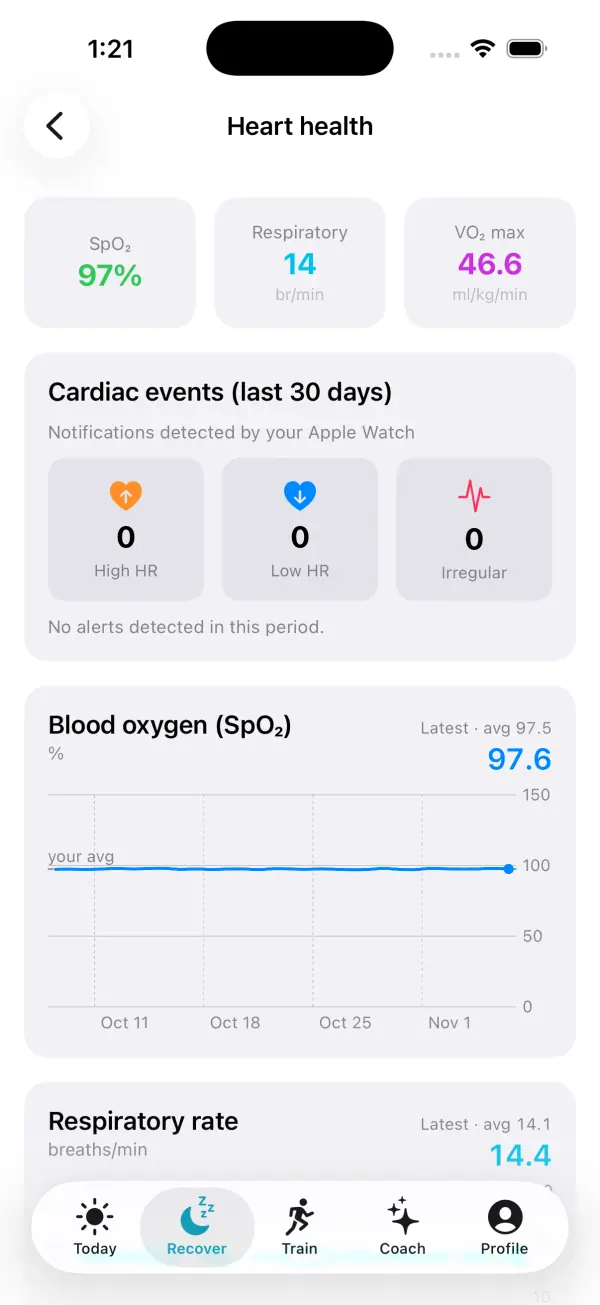
How VedaWatch can help during your 7-day cuff log
VedaWatch doesn't detect hypertension and doesn't show Apple's hypertension notifications; for those, use the Health app. What it can do is keep the rest of your heart data in view while you and your doctor work out what's going on.
On the Recover tab, Heart health shows your blood oxygen, respiratory rate and VO2 max, plus a count of high heart rate, low heart rate and irregular rhythm notifications from the last 30 days. Your resting heart rate and HRV trends sit alongside your readiness score, compared with your recent baseline.
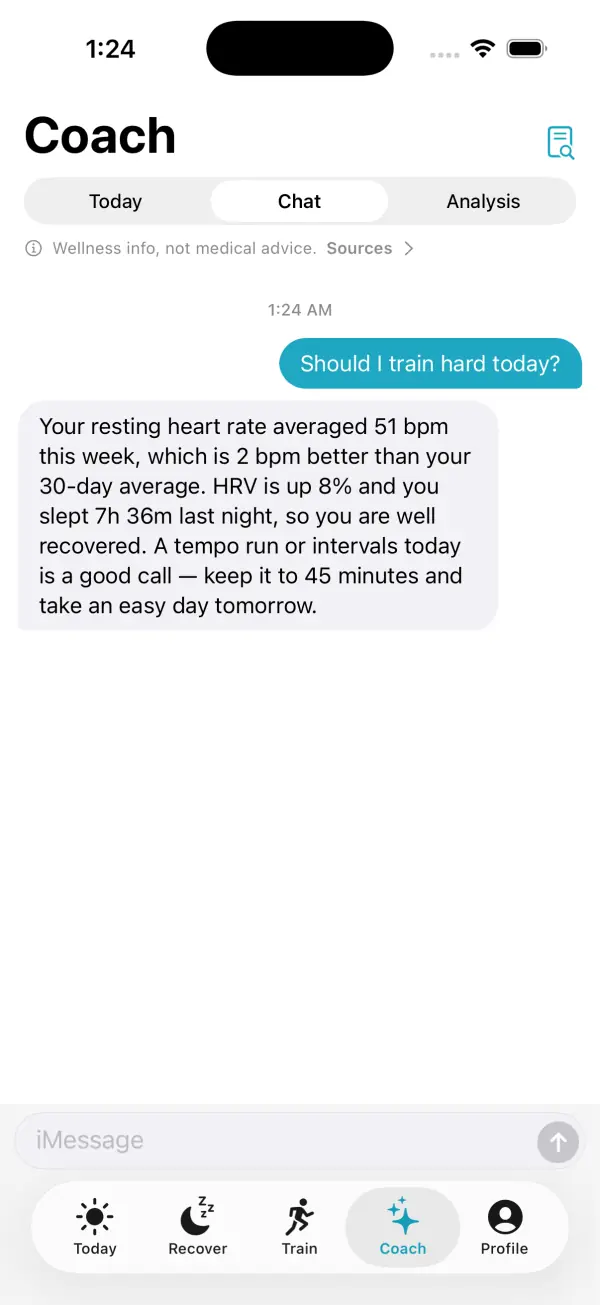
If you log your cuff readings to Apple Health and use VedaWatch Pro ($6.99 a month or $59.99 a year on the US App Store, November 2026) with Health sync and AI processing turned on, your most recent blood pressure reading is part of the summary the AI Coach works from, along with sleep, activity and heart data. That lets you ask the Coach about your week in plain language, for example how your sleep and training looked while you were logging. Coach is wellness information from third-party AI models, not medical advice; your doctor interprets your blood pressure.
Daily tags can also help you notice context worth mentioning at your appointment, such as stressful days, alcohol or late meals. Treat any pattern you see as something to discuss, not a conclusion.
Frequently asked questions
Can Apple Watch measure my blood pressure?
No. Apple Watch doesn't give you systolic or diastolic numbers. Hypertension notifications only tell you that a 30-day pattern suggests possible hypertension; you still need a cuff to know your actual blood pressure.
Can I use hypertension notifications if I already have high blood pressure?
Apple says the feature is not for people who have already been diagnosed with hypertension. If you have a diagnosis, home cuff readings and your doctor's plan are the way to track it, and you can log those readings in the Health app.
How long after setup can I get a notification?
The feature evaluates your data in 30-day periods starting the day you set it up, so a notification comes at the end of an evaluation period, not within the first few days.
Does it work on Apple Watch SE or older models?
No. Apple lists Apple Watch Series 9 or later and Apple Watch Ultra 2 or later, and says the feature isn't available on Apple Watch SE.
I got a notification but my cuff readings look normal. What now?
Share the full 7-day log with your doctor anyway. About 8 in 100 people without hypertension were notified in Apple's study, and your doctor can decide whether more home readings or another kind of check makes sense.
Related guides
- How to measure blood pressure at home: cuff, posture and timing
- Best exercise to lower blood pressure: what 270 trials show
- Apple Watch high heart rate notification: causes and what to do
- Apple Watch AFib History explained: what it does and doesn't do
- Resting heart rate on Apple Watch: what's high, low, and why it changes
- Apple Watch health alerts: early illness warning, body strain and other smart alerts in VedaWatch
- Apple Watch sleep apnea notifications: what they mean
- Ask an AI coach about your Apple Watch data: what VedaWatch's Coach can do
Sources & further reading
- Apple Support: Hypertension notifications on your Apple Watch
- Apple Watch User Guide: Receive hypertension notifications on Apple Watch
- Apple Newsroom (September 2025): Apple debuts Apple Watch Series 11, featuring groundbreaking health insights
- Apple: watchOS feature availability (Hypertension Notifications)
- U.S. FDA 510(k) K250507: Hypertension Notification Feature (HTNF), Apple Inc., 510(k) summary
- CDC: About High Blood Pressure
- CDC: Measuring Your Blood Pressure
- World Health Organization: Hypertension fact sheet
This guide is educational, not medical advice, and has not been clinically reviewed. VedaWatch is not a medical device. If you have symptoms or concerns about your heart or health, contact a qualified healthcare professional.
Put your trends in perspective.
Explore HRV, sleep, and recovery with VedaWatch on your iPhone.
Download VedaWatch on the App Store →