 VedaWatch
Recovery & Apple Watch
How to take an ECG on Apple Watch and what the results mean
How to take an ECG on Apple Watch step by step: supported models, what sinus rhythm, AFib and inconclusive results mean, how to get a clean reading and share the PDF.
By VedaWatch editorial team · · 9 min read
The short answer
Open the ECG app on Apple Watch Series 4 or later or any Apple Watch Ultra, rest your arm on a table, and hold a finger from your other hand on the Digital Crown for 30 seconds. You get one classification for that moment, such as sinus rhythm, atrial fibrillation, high or low heart rate, or inconclusive, saved in the Health app as a PDF you can share. It can't detect a heart attack, so call emergency services for chest pain.
How do you take an ECG on Apple Watch?
The ECG app records a 30-second, single-lead electrocardiogram, similar to Lead I on a hospital ECG. The Watch's back crystal and the Digital Crown act as electrodes: touching the Crown with your other hand closes a circuit across your chest, and the Watch records the electrical signal of your heartbeat.
Once the app is set up (see below), taking a recording takes well under a minute. Apple's steps are:
- Check the Watch is snug and on the wrist you chose in the Watch app on iPhone (My Watch, then General, then Watch Orientation).
- Open the ECG app on your Apple Watch.
- Sit down and rest your arms on a table or in your lap. Try to relax and keep still.
- With the hand opposite your Watch, hold a finger on the Digital Crown. Don't press it; just keep contact.
- Wait 30 seconds while the recording runs and a countdown shows.
- Read the classification. You can tap Add Symptoms to note how you felt, such as a racing heartbeat or dizziness, then tap Save and Done.
Which Apple Watch models have ECG, and where is it available?
Apple supports the ECG app on Apple Watch Series 4 or later and all Apple Watch Ultra models. It isn't available on Apple Watch SE or on a Watch set up through Apple Watch For Your Kids. You need to be 22 or older; the app isn't intended for younger users.
Availability also depends on your country or region, because the app is a regulated medical feature. Apple's watchOS feature availability page lists where it works, which now includes most countries. Changing your iPhone's region doesn't unlock it where it isn't approved. In the US, the FDA granted Apple's De Novo request for the ECG app on September 11, 2018.
Before setup, update your iPhone to the latest iOS and your Watch to the latest watchOS. If the ECG app isn't on your Watch, open the Watch app on iPhone, tap Heart, and install it from the ECG section.
- On iPhone, open the Health app and tap Browse.
- Tap Heart, then Electrocardiograms (ECG), then Set Up ECG App.
- Follow the onscreen steps, which explain how the app works and what each result means.
- Open the ECG app on your Watch to take your first recording.
What do Apple Watch ECG results mean?
Every recording gets one classification. Apple's instructions for use for ECG app version 2 describe the results below. The original version 1 has fewer categories: it checks for AFib only between 50 and 120 bpm and treats a heart rate of 100 to 120 bpm without AFib as inconclusive.
Each result describes only that 30-second recording. Apple is clear that a sinus rhythm result doesn't mean you're healthy, and that any result should be discussed with a doctor if you feel unwell or have symptoms.
- Sinus rhythm: your heart is beating in a uniform pattern within the normal range (50 to 99 bpm in version 2), with the upper and lower chambers in sync. This is the usual result.
- High heart rate, no atrial fibrillation detected: a regular rhythm between 100 and 150 bpm. Exercise, stress, nerves, alcohol, dehydration and infection can all raise heart rate.
- Atrial fibrillation: an irregular pattern between 50 and 99 bpm that shows signs of AFib, the most common serious arrhythmia. It's a potential finding, not a diagnosis.
- Atrial fibrillation, high heart rate: an irregular pattern with signs of AFib between 100 and 150 bpm.
- Low or high heart rate: below 50 bpm or above 150 bpm, the app can't check for AFib. A low rate can come from some medicines, conduction problems in the heart, or endurance training.
- Inconclusive: the recording couldn't be classified. Reasons include another arrhythmia the app isn't designed to recognise, a pacemaker or implanted defibrillator, or a body that doesn't produce enough signal at the wrist.
- Poor recording: there was too much noise in the trace, usually from movement or a loose Watch. Version 2 reports this separately from inconclusive.
Why is my Apple Watch ECG inconclusive?
Inconclusive and poor-recording results are common and usually technical. In Apple's earlier clinical trial for version 1, about 12% of recordings couldn't be classified, and Apple says real-world use may produce more. In a 2022 study of 74 people booked for cardioversion, 27.9% of first recordings were unclassified, mostly because of noise and a wandering baseline in the signal.
The common causes are movement, a loose band, sweat or water between the Watch and skin, arms held in the air rather than resting, and electrical interference from devices plugged into the mains. Heart rate matters too: a resting rate under 50 bpm, common in fit runners, puts you outside the range the app can classify.
Some causes aren't fixable by technique. If you have a pacemaker or implanted defibrillator, Apple says not to use the app at all. If you have another known arrhythmia, such as atrial flutter or frequent extra beats, the app isn't designed for you and may keep returning inconclusive. And a small share of people simply don't generate enough signal for a clean trace.
An inconclusive result isn't a finding either way. If you feel unwell, don't wait for a clean recording: contact your doctor, and call emergency services for chest pain or fainting.
How to get a clean ECG reading
These tips come from Apple's troubleshooting guidance for the ECG app. Work through them before retaking a recording.
- Sit down and rest the arm wearing the Watch on a table or your lap. Don't record while walking or exercising.
- Tighten the band so the back of the Watch is flat against your wrist.
- Wipe your wrist and the back of the Watch so both are clean and dry. Sweat and water cause poor recordings.
- Touch the Digital Crown lightly with one fingertip; don't press it or grip the Watch case.
- Move away from laptops, chargers and other electronics plugged into the wall, and from strong electromagnetic fields such as security gates.
- Check Watch Orientation is set to the wrist you're actually wearing it on. If the waveform looks upside down, this setting is usually wrong.
- Breathe normally and stay still for the full 30 seconds, then retake once if needed. If you keep getting inconclusive results, mention it to your doctor rather than recording over and over.
What the Apple Watch ECG app can't do
The ECG app cannot detect a heart attack, blood clots or a stroke. Apple's own support page says this plainly. A heart attack can happen with a normal-looking single-lead trace, so a sinus rhythm result is never reassurance if you have symptoms. Call emergency services straight away for chest pain, pressure or tightness, pain spreading to your arm, neck or jaw, severe breathlessness, sweating, or fainting.
It also can't detect high blood pressure, heart failure, high cholesterol, or arrhythmias other than AFib. It only records when you ask it to, so it won't catch an episode that's over before you open the app.
In Apple's clinical trial of version 2, which compared the Watch with a 12-lead ECG read by a cardiologist in about 546 people, the app was 98.5% sensitive for AFib and 99.3% specific for sinus rhythm among classifiable recordings. That is good, but it applies only to recordings that could be classified, and it's not a diagnosis. Don't start, stop or change medication because of a result; take it to your doctor.
How VedaWatch shows your ECG recordings
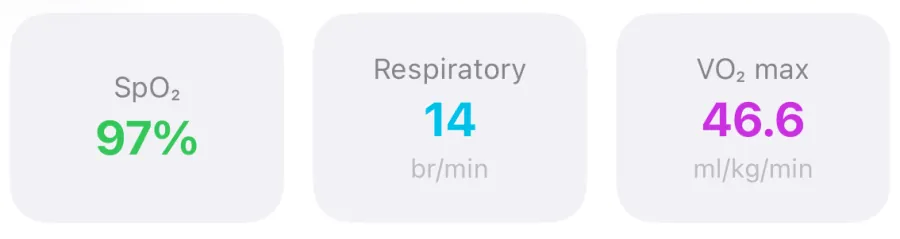
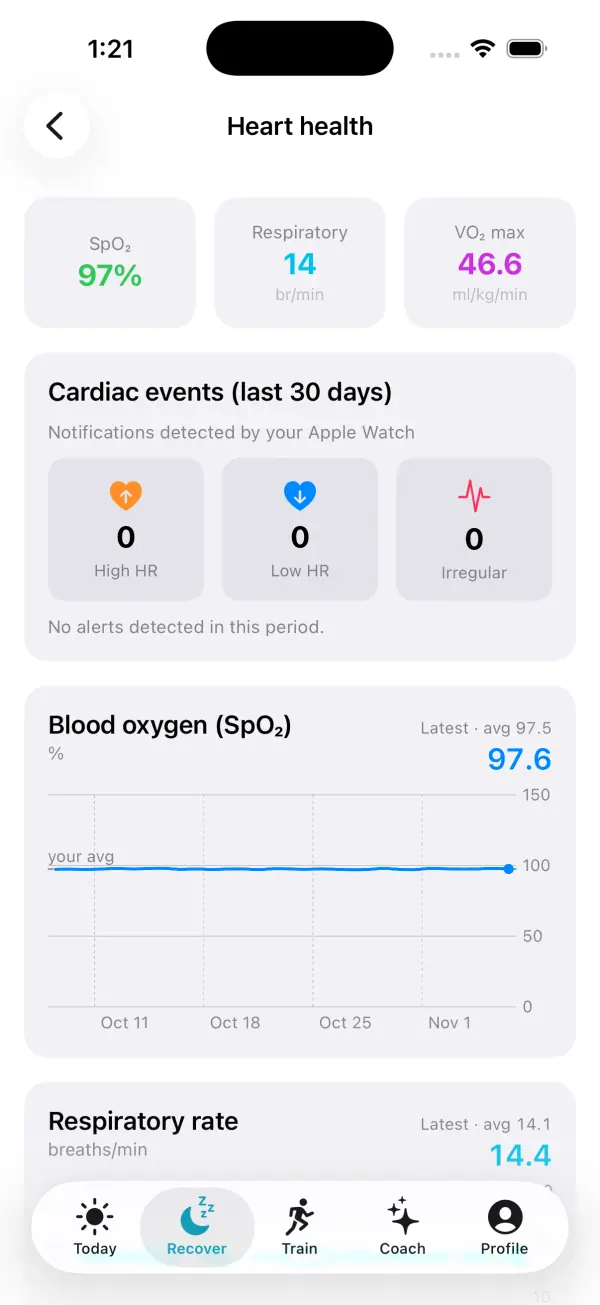
VedaWatch doesn't take or analyse ECGs. It reads the recordings your Apple Watch ECG app has already saved to Apple Health. Under Recover, then Heart health, an ECG & AFib History card counts your recordings from the last year and shows the latest classification. Opening it lists each ECG with its classification and average heart rate, and each recording shows the full 30-second trace on standard ECG grid paper (25 mm/s, 10 mm/mV). If you use AFib History, your weekly estimates appear as a chart on the same screen, next to your high, low and irregular rhythm notifications from the last 90 days.
With VedaWatch Pro, a Doctor report builds a PDF on your iPhone that brings together blood pressure readings, resting heart rate and HRV trends, heart notifications, AFib History and a waveform strip for each ECG in the period you choose, with space for your own notes. It only leaves your phone if you share or print it.
None of this is a diagnosis. The app labels the trace as a recording from the Apple Watch ECG app that only a clinician can interpret, and it repeats that the ECG can't detect heart attacks, blood clots or stroke.
Frequently asked questions
How long does an Apple Watch ECG take?
The recording takes 30 seconds while you hold a finger on the Digital Crown. Setup in the Health app takes a few minutes the first time.
What does sinus rhythm mean on Apple Watch?
Your heart was beating in a regular pattern within the normal range during that recording, with the upper and lower chambers in sync. It applies only to those 30 seconds and doesn't rule out other heart conditions.
Why does my Apple Watch ECG keep saying inconclusive?
Usually because of movement, a loose band, sweat, or electrical interference. A heart rate under 50 bpm, a pacemaker, or another arrhythmia can also stop the app classifying the trace. Rest your arm, tighten the band and retry, and tell your doctor if it keeps happening.
Can an Apple Watch ECG detect a heart attack?
No. Apple states that the ECG app cannot detect a heart attack, blood clots or a stroke. If you have chest pain, pressure or tightness, call emergency services immediately.
Does Apple Watch SE have ECG?
No. The ECG app needs Apple Watch Series 4 or later or any Apple Watch Ultra, because those models have the electrical heart sensor.
Can my doctor use my Apple Watch ECG?
Yes, as supporting information. Export the recording from the Health app as a PDF and share it. Your doctor may still want a 12-lead ECG or longer monitoring to confirm anything.
Can I take an ECG after exercise?
Apple advises against recording during physical activity. Wait until you're sitting still; a rate above 150 bpm can't be checked for AFib.
Related guides
- Apple Watch AFib History explained: what it does and doesn't do
- Apple Watch high heart rate notification: causes and what to do
- Apple Watch heart rate wrong? 9 fixes for accurate readings
- Which Apple Watch is best for health tracking? (2026 guide)
- Resting heart rate on Apple Watch: what's high, low, and why it changes
- Apple Watch hypertension notification: how it works, what to do
Sources & further reading
- Apple Support: Take an ECG with the ECG app on Apple Watch
- Apple: ECG app 2.0, Instructions for Use
- Apple: ECG app 1.0, Instructions for Use
- Apple: watchOS feature availability
- FDA De Novo DEN180044: ECG App
- Pepplinkhuizen S, et al. Accuracy and clinical relevance of the single-lead Apple Watch electrocardiogram to identify atrial fibrillation. Cardiovascular Digital Health Journal, 2022
- NHS: Heart attack
This guide is educational, not medical advice, and has not been clinically reviewed. VedaWatch is not a medical device. If you have symptoms or concerns about your heart or health, contact a qualified healthcare professional.
Put your trends in perspective.
Explore HRV, sleep, and recovery with VedaWatch on your iPhone.
Download VedaWatch on the App Store →