 VedaWatch
AI & Health Data
How to export Apple Health data (and convert it to CSV)
How to export Apple Health data step by step: what's inside export.xml, how to turn it into CSV, how to share it with a doctor, and how to keep the file private.
By VedaWatch editorial team · · 9 min read
The short answer
Open the Health app on your iPhone, tap Summary, tap your picture or initials, then tap Export All Health Data and choose where to send it, such as Save to Files. You get a ZIP file with everything in XML format (export.xml). To use it in a spreadsheet, convert the records you need to CSV.
How to export Apple Health data on iPhone
Apple Health has one built-in export, and it lives on your profile page rather than in Settings. These steps match Apple's iPhone User Guide for iOS 26 and iOS 27 as of November 2026. Older versions of iOS put the same button in the same place, but if your screen looks different, check Apple's guide for your iOS version.
Keep the Health app open and your iPhone unlocked while the export runs. With years of Apple Watch data the file can take several minutes to build, and a few people in Apple's community forums report that the export stalled when the phone locked.
- Open the Health app on your iPhone. The export only exists on iPhone, not on Apple Watch.
- Tap Summary at the bottom of the screen.
- Tap your picture or initials at the top right to open your profile.
- Scroll down and tap Export All Health Data. If Health asks you to confirm, tap Export and wait while it prepares the file.
- When the share sheet appears, choose Save to Files to keep the file on your iPhone or in iCloud Drive, or AirDrop it to your Mac. Avoid email and messaging apps for now; the privacy section below explains why.
- On your Mac or PC, double-click the file (usually named export.zip) to unzip it. You'll get a folder called apple_health_export.
What's inside the export: export.xml and the other files
Apple describes the export as all of your health and fitness data in XML format, a common format for sharing data between apps. Apple doesn't publish a full description of the folder, so what follows is what you'll typically find, and it can vary with your iOS version and the data you have.
export.xml is the main file. It holds every sample Health has stored: each heart rate reading, each step count chunk, each night of sleep, each workout. For someone who has worn an Apple Watch for a few years it can be hundreds of megabytes, far too big to open comfortably in a text editor.
export_cda.xml is a second copy of some of the data in a clinical document format (CDA) used by health record systems. Most people can ignore it.
Depending on what you've recorded, there may also be a workout-routes folder with one GPX file per outdoor workout that had GPS, an electrocardiograms folder with one CSV file per ECG you took on your Apple Watch, and clinical records if you downloaded health records from a provider.
- Me: one line with profile details such as date of birth, biological sex and blood type, if you entered them in Health.
- Record: the bulk of the file. Each line is one measurement with a type (for example HKQuantityTypeIdentifierHeartRate), the app or device that recorded it (sourceName), a unit, start and end dates, and a value.
- Workout: one entry per workout, with its activity type, duration, distance and energy, plus nested statistics and events.
- ActivitySummary: one line per day with your Move, Exercise and Stand ring values and goals.
- Category records: things without a number, like sleep. A sleep record's value is a stage such as HKCategoryValueSleepAnalysisAsleepDeep or HKCategoryValueSleepAnalysisAwake, with start and end times.
How to read a Record line (worked example)
Every Record line follows the same pattern, so once you can read one you can read them all. A heart rate line contains, in order: type="HKQuantityTypeIdentifierHeartRate", sourceName set to your watch's name, unit="count/min", a creationDate, a startDate and endDate such as 2026-11-09 07:12:31 -0500, and value="58". That's one heart rate reading of 58 beats per minute, taken at 7:12 in the morning in a time zone five hours behind UTC.
The type name tells you what you're looking at. Apple's HealthKit documentation lists every identifier. The ones people look for most are HKQuantityTypeIdentifierStepCount (steps), HKQuantityTypeIdentifierRestingHeartRate (resting heart rate in count/min), HKQuantityTypeIdentifierHeartRateVariabilitySDNN (HRV in milliseconds), HKQuantityTypeIdentifierActiveEnergyBurned (active calories) and HKCategoryTypeIdentifierSleepAnalysis (sleep).
Three things trip people up. First, steps are stored as many small chunks, not one daily total, so you have to add them up per day. Second, if your iPhone and Apple Watch both count steps, the export contains both sets. The Health app shows a de-duplicated total, but adding every StepCount record yourself can count the same walk twice, so filter to one sourceName or expect a higher number than Health shows. Third, every date carries its own time zone offset, so data recorded while travelling can land on an unexpected day if you ignore it.
How to convert Apple Health export.xml to CSV
Apple's export has no CSV option, and dropping a large export.xml into Excel or Numbers usually ends badly: the file is too big, and the spreadsheet tries to turn nested XML into columns it can't line up. The reliable approach is to pull out only the record types you need and write those to CSV.
The simplest route if you can run a short script is Python, which is already installed on a Mac or easy to add on Windows. Its built-in XML module can read export.xml one element at a time with iterparse, so it doesn't need to load the whole file into memory. You keep only Record elements whose type matches what you want, write five columns (type, sourceName, startDate, endDate and value) to a CSV file, and clear each element after reading it. A script along those lines is a dozen lines long, and the result opens straight away in any spreadsheet.
If you'd rather not touch code, there are App Store apps that read your data directly from Apple Health and write CSV files, letting you skip the XML entirely. Before you pick one, read its privacy label and check whether it processes data on your iPhone or uploads it to its own servers.
- Decide what you want: for example, daily steps and overnight HRV for the last 90 days. Smaller is better.
- Filter by type: keep only Record lines with HKQuantityTypeIdentifierStepCount and HKQuantityTypeIdentifierHeartRateVariabilitySDNN.
- Filter by date: keep only records whose startDate is inside your 90 days. This alone can shrink the file from hundreds of megabytes to a few.
- Write the CSV with one row per record and the columns type, sourceName, startDate, endDate, unit and value.
- Summarise in the spreadsheet: add up steps per day (from one source, to avoid double counting) and average HRV per day. Now you have 90 rows per metric instead of hundreds of thousands.
Is it safe to export Apple Health data? Privacy tips
Inside the Health app, your data is well protected. Apple says Health data is encrypted on the device and inaccessible while your iPhone is locked, and that Health data synced to iCloud is encrypted end to end when you use two-factor authentication. The export is different: once it leaves the Health app it's an ordinary ZIP file, and it's protected only by wherever you put it.
That file can be very revealing. Beyond heart rate and sleep, it may include your date of birth, medications, cycle tracking, health records from providers, ECG recordings and GPS routes for every outdoor workout, which can show where you live and run. Treat it like a medical record.
- Save it somewhere you control, such as Files on your iPhone or a folder on your Mac, rather than emailing it or posting it in a chat.
- Don't upload the whole export to a website or an AI chatbot. If you want help analysing it, cut it down to the record types and dates you need first, and remove the workout-routes folder if location isn't relevant.
- If you send it to an app or service, check its privacy policy for how long it keeps the file and whether it's used for anything else.
- Delete the ZIP and the unzipped folder when you're done. Health keeps the original data, so you can always export again.
- Remember that an export isn't a backup. Apple's backup for Health data is iCloud or an encrypted computer backup, and Apple doesn't document a way to import an export file back into Health.
Export not working? Common problems
If the export seems stuck, keep Health in the foreground and the screen unlocked, make sure your iPhone has free storage (the ZIP is created on the phone first), and try again after restarting the phone. If you can't find the button, make sure you're on the Summary tab and that you tapped your own picture or initials, not a shared profile.
If the ZIP won't open on your computer, try another unzip tool. Some people in Apple's community forums report that the built-in tool on one system failed while another worked. If data is missing from the export, check whether it's in the Health app at all: the export can only contain what Health has stored, so a metric your watch never recorded, or an app that never wrote to Health, won't appear.
Using your Health data without exporting it
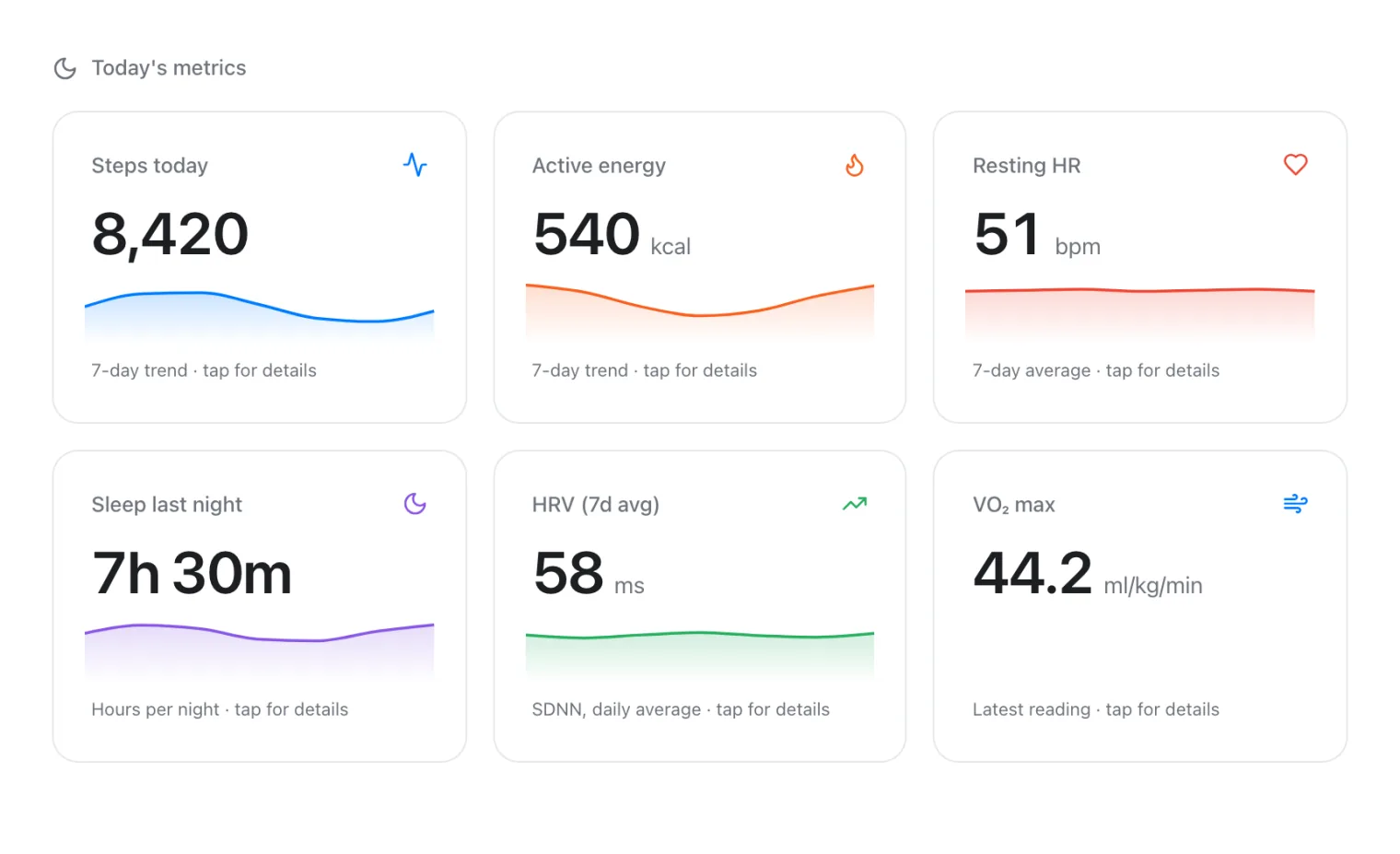
Many people export Apple Health data because they want to see trends the Health app doesn't put side by side, or to ask an AI about them. VedaWatch reads the data directly from Apple Health on your iPhone, with the permissions you grant, and turns it into readiness, HRV and resting heart rate trends, sleep, training load and more. No XML files are involved, and by default your Health data stays on your iPhone.
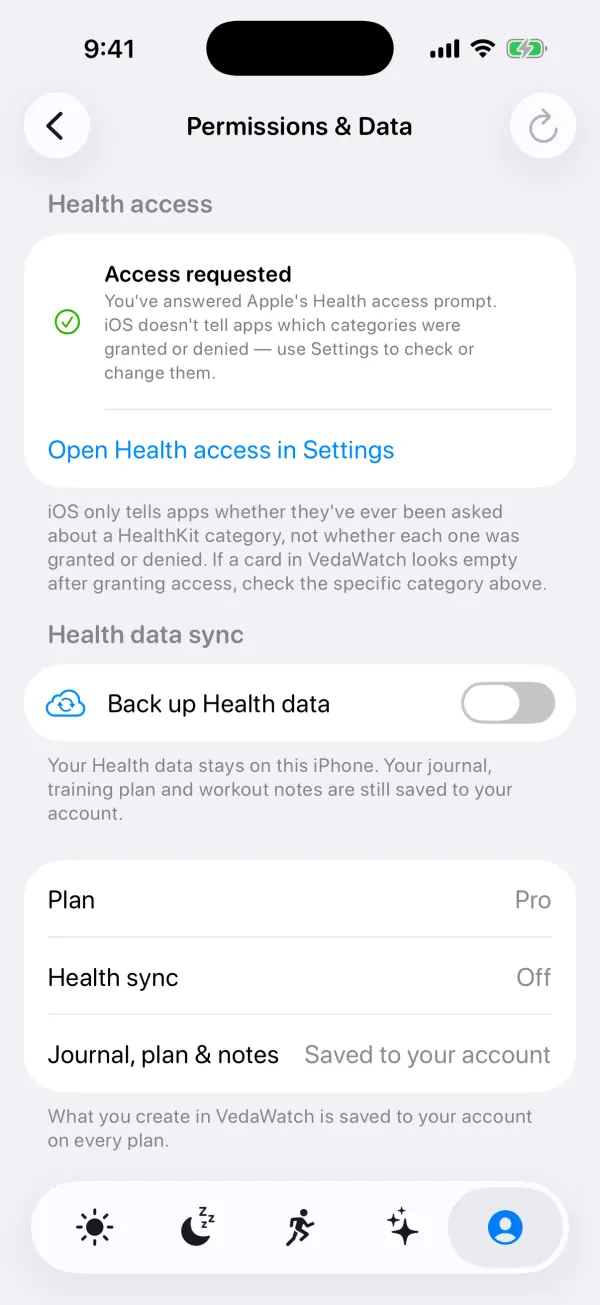
If you want to ask an AI assistant about your data, VedaWatch lets you connect Claude, ChatGPT or Gemini from Profile in the app. The assistant can read what VedaWatch shows you but can't change anything, and your Apple Health data is only available to it if you've turned on Health backup, which is a Pro option, off by default. That's narrower than handing over a full export with your routes and records.
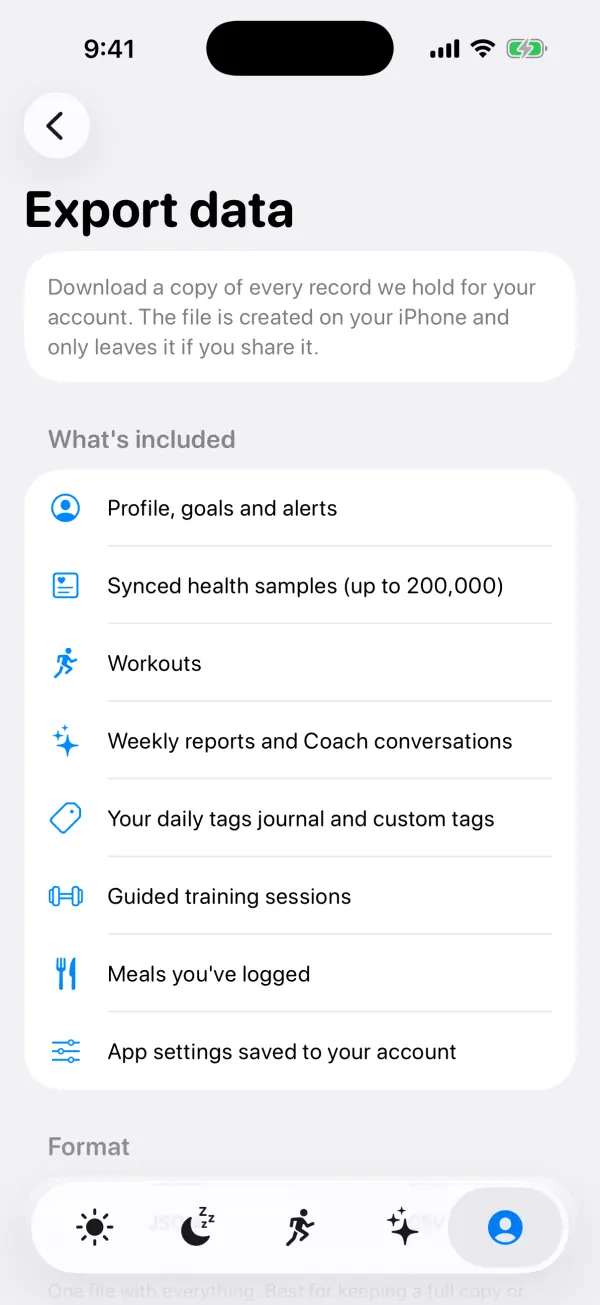
VedaWatch also has its own export. In Profile, under Data, Export my data downloads everything VedaWatch holds for your account, such as your profile, goals, journal, guided sessions, meals and, if backup is on, synced health samples and workouts, as one JSON file or as one CSV file per section that opens in Numbers or Excel. The file is created on your iPhone and only leaves it if you share it. It's a copy of your VedaWatch data, not a replacement for Apple's full Health export.
Frequently asked questions
Can I export only one type of data, like heart rate or sleep?
Not with Apple's built-in export, which is all or nothing. Export everything, then filter export.xml by record type when you convert it to CSV, or use an app that reads only the categories you allow.
Can I export Apple Health data from my Apple Watch or a Mac?
No. Your Apple Watch sends its data to the Health app on your paired iPhone, and Apple's export is run from the Health app on iPhone. You can then move the file to a Mac or PC with AirDrop or Files.
Can I import an Apple Health export into a new iPhone?
Apple doesn't document a way to import the export file into Health. To move your history to a new iPhone, use iCloud with Health turned on, or restore from an encrypted backup.
Does exporting delete anything from the Health app?
No. Exporting makes a copy and leaves everything in Health as it was. Deleting the exported file later doesn't affect Health either.
Why don't the numbers in my CSV match the Health app?
Usually because the same activity was recorded by more than one source, such as your iPhone and Apple Watch both counting steps. Health shows a de-duplicated total, so filter to one source or compare per-source values.
Related guides
- Your Apple Health data in VedaWatch: privacy, backup sync, export and deletion
- Can AI read Apple Health data? What each kind of tool shares
- How to connect Claude, ChatGPT or Gemini to your Apple Watch health data
- What is MCP? Model Context Protocol for your health data
- Is Apple Watch HRV accurate? What the validation studies actually show
- Apple Watch sleep stages: what Awake, REM, Core, and Deep mean
Sources & further reading
- Apple Support: Share your data in Health on iPhone (iPhone User Guide)
- Apple Support: Share your data in Health on iPhone, iOS 26 (Share health data with your doctor)
- Apple Support: Take an ECG with the ECG app on Apple Watch
- Apple Support: Back up your Health data in iCloud on iPhone
- Apple: Health App & Privacy
- Apple Health: Privacy
- Apple Developer: HKQuantityTypeIdentifier
This guide is educational, not medical advice, and has not been clinically reviewed. VedaWatch is not a medical device. If you have symptoms or concerns about your heart or health, contact a qualified healthcare professional.
Put your trends in perspective.
Explore HRV, sleep, and recovery with VedaWatch on your iPhone.
Download VedaWatch on the App Store →