 VedaWatch
AI & Health Data
Can AI read Apple Health data? What each kind of tool shares
Can AI read Apple Health data? Only if you let it. See the 3 ways AI tools get your Health data, what each shares, what to ask first and how to revoke access.
By VedaWatch editorial team · · 11 min read
The short answer
Not on its own. Apple Health keeps your data on your iPhone, and an AI tool only sees it if you hand it over: by uploading an export file, by allowing an app with built-in AI features to read Health, or by approving a connector. Each route shares a different amount, and each can be stopped.
Can AI read your Apple Health data?
No AI model can reach into the Health app by itself. Apple stores Health data on your iPhone in a protected area that apps can only read after you grant permission, and you grant it separately for each type of data, such as heart rate, sleep or steps. Apple's security documentation says reading and writing are permitted separately for each data type, so an app can be allowed to read your steps but not your heart rate.
So the real question is not whether AI can read your Health data, but which route you've opened and what passes through it. There are three common routes today: you export a file and give it to an AI chatbot, an app you've allowed to read Health sends some of it to an AI model to power its own features, or you connect an AI assistant to an app through a connector, often built on the Model Context Protocol (MCP).
These routes are very different in how much they share, how long the data is kept, and how easy they are to undo. The sections below take each one in turn, then give you a checklist of questions to ask and the exact places to switch access off.
The 3 ways AI tools get Apple Health data
Here's a side-by-side summary. The amount shared ranges from your entire Health history in one file to a few days of summaries answered one question at a time.
- Export file uploaded to a chatbot. How it gets there: you export from the Health app and upload the file. What's shared: everything in Health on that iPhone, all at once. Ongoing access: none, but the copy stays wherever you uploaded it. How to undo: delete the chat or file under the chatbot's own settings.
- AI built into a health app. How it gets there: the app reads Health with the permissions you gave it, then sends some data to an AI model when you use an AI feature. What's shared: depends on the app, from raw samples to short daily summaries. Ongoing access: yes, while Health permission and the app's AI setting are on. How to undo: turn off the app's AI setting, its cloud sync, and its Health permissions.
- Connector to an AI assistant (MCP or similar). How it gets there: you add a connector in the assistant and approve it on the app's sign-in page. What's shared: whatever the app's tools return for each question you ask. Ongoing access: yes, until you remove the connector. How to undo: remove the connector in the assistant and, where offered, stop the app's cloud sync.
Route 1: uploading a Health export to a chatbot
The Health app can export a copy of everything it holds on your iPhone. Apple's Health privacy page describes it: tap your profile picture, then Export All Health Data. Apple's guide describes the data as exported in XML format. It's all or nothing: you can't pick just sleep or just workouts from Apple's own export screen.
That makes it the most generous way to share. One file can hold years of heart rate samples, sleep, workouts and anything else you or your apps have logged in Health. If you upload it to an AI chatbot, the chatbot now holds a copy, and that copy is governed by the chatbot provider's terms, not by Apple.
A worked example: say you want an AI to tell you whether your sleep got worse in October. You only need about 60 nights of sleep data. A full export might contain years of every category. Sharing the whole file to answer a two-month sleep question is like handing over a full medical folder to answer one question about your sleep diary.
If you do go this route, trim the file first or share a screenshot or a short summary of just the metric you're asking about, check whether the chatbot uses uploads to train its models and how to opt out, and delete the conversation when you're done. The export also sits on your phone, so delete it from Files after you've uploaded it.
Route 2: apps with built-in AI features
Many fitness and recovery apps now include an AI coach or chat. The app reads Health on your iPhone using the categories you allowed, and when you use an AI feature, it sends some of that data to an AI model, usually through its own servers, and shows you the answer.
Apple sets rules for this. Under App Store Review Guideline 5.1.3, apps may not use or share data from HealthKit for advertising, marketing or other data mining, must disclose the specific health data they collect, and may not store personal health information in iCloud. Apple's Health privacy page also notes that every app that reads Health must have a privacy policy describing how it uses health data, and suggests reading it before you grant access.
What those rules don't decide is how much each AI request includes, which AI company processes it, or how long it's kept. That varies a lot between apps. Some send raw readings; others send short daily summaries for a few days or weeks. Some send data the moment you open a screen; others only when you tap an AI feature. The app's AI consent screen and privacy policy are where to find out.
One more Apple detail is worth knowing. iOS doesn't tell an app which Health categories you denied. Apple's security guide says that when read access is denied, the app's queries simply come back empty, the same as if there were no data. That protects you, but it also means an app can't always warn you that a category is missing.
Route 3: connectors and MCP for AI assistants
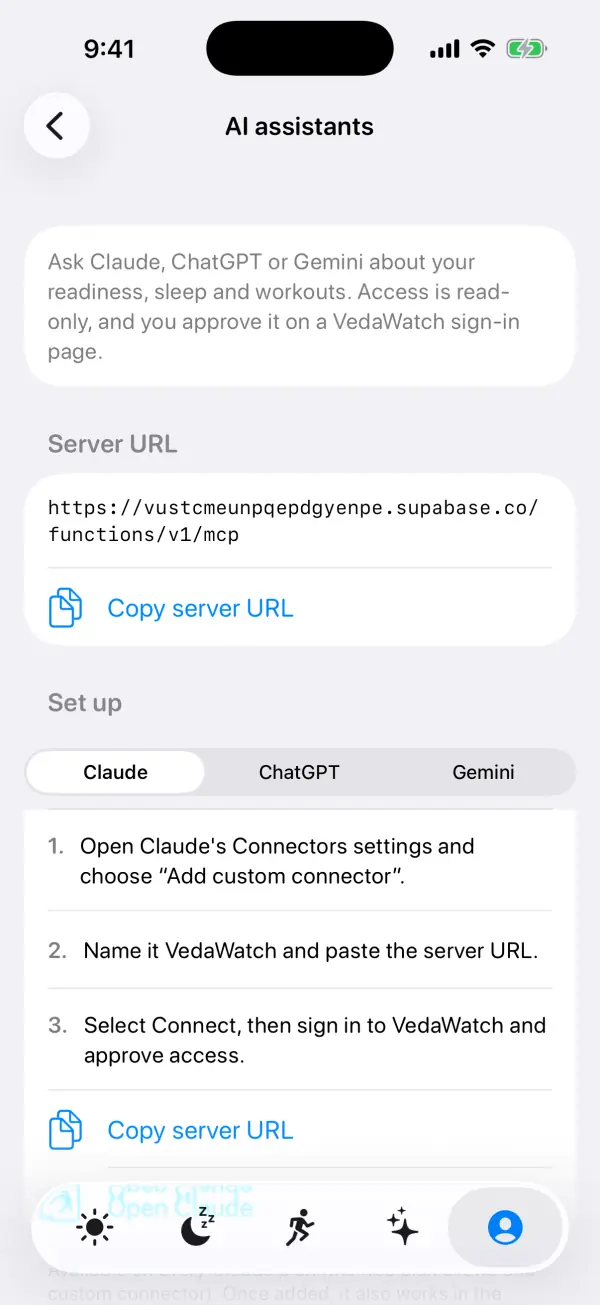
General AI assistants like Claude, ChatGPT and Gemini can't open the Health app on your iPhone. But many now support connectors: you add an app's server address in the assistant's settings, sign in to that app, and approve access. From then on, when a question needs your data, the assistant asks the app's server, which answers with just the data for that request.
The Model Context Protocol is the open standard most of these connectors use. Its authorization specification is built on OAuth 2.1: you sign in on the app's own page, the assistant never sees your password, and it receives an access token that the app's server checks on every request. The specification also requires tokens to be issued for one specific server, so a token for one app can't be reused against another.
What a connector can do depends entirely on the app behind it. Some offer read-only lookups; others can also write, for example logging a workout or changing a setting. A connector only knows what that app knows, so if the app hasn't copied your Health data to its servers, there's nothing for the assistant to read. And whatever the assistant reads becomes part of your conversation, which is then handled under the assistant's privacy policy.
Some AI assistants are also adding their own direct Apple Health connections through an iPhone app. These work like Route 2 with the assistant as the app: you grant Health permissions in iOS to the assistant's app, and its provider's policies govern what happens next. Check each provider's current help pages, since availability and terms change often.
Is it safe, and does HIPAA protect it?
It depends far more on the company receiving the data than on the AI itself. Before connecting anything, it helps to know that health data in a consumer app is often not covered by HIPAA. HIPAA is aimed at healthcare organizations and the companies working for them, so a fitness app or chatbot you sign up for yourself often falls outside it.
In the US, the Federal Trade Commission's Health Breach Notification Rule fills part of that gap. The FTC says it applies to health apps that aren't covered by HIPAA, and that a breach isn't only a hack: sharing someone's health information without their authorization also counts. Other countries have their own privacy laws, and the World Health Organization's 2021 guidance on AI for health calls for ethics and human rights to be at the heart of how these tools are designed and used.
Practical risk comes down to a few things: how much data leaves your phone, whether it's linked to your name or email, whether it's used to train models, how long it's kept, and whether you can delete it. The checklist below turns those into questions you can answer from an app's consent screen and privacy policy in a few minutes.
One last point about safety of a different kind: AI answers about your health data can be wrong, and none of these tools can diagnose you. If an AI flags something that worries you, such as a high resting heart rate or irregular rhythm notifications, take the actual readings to a doctor rather than acting on the AI's interpretation.
8 questions to ask before letting AI read your Health data
You'll find most answers in the app's AI consent screen, its privacy policy, or its help pages. If you can't find an answer, treat that as the answer.
- Is it opt-in? Nothing should be sent to an AI model until you've agreed on a screen that explains what's sent.
- Which data categories are included? Look for a specific list, not just "health data".
- How much history goes with each request? A week or a month of summaries is very different from your full raw history.
- Is it linked to you? Check whether your name, email or device identifiers are sent along with the data.
- Who processes it? The app should say whether a third-party AI company handles requests and under what terms.
- Is it used for training or advertising? Look for a clear no on both, and for how long requests are kept.
- Can the AI change anything? For connectors, check whether access is read-only or can also write or delete.
- How do you stop it and delete it? There should be a switch to turn AI off, a way to remove copies, and a way to delete your account.
How to revoke AI access to Apple Health
Because each route works differently, stopping access takes a step for each one you've used. Turning off Health permissions stops an app reading anything new, but it doesn't delete copies the app or an AI service already holds, so do both.
- Stop an app reading Health: on iPhone, open Settings, then Health, then Data Access & Devices, tap the app and turn categories off, or use Turn Off All. Apple's security guide names this as the place to view and revoke permissions.
- Turn off the app's AI features: find its AI or coach setting, usually in the app's profile or settings, and switch it off so no new data is sent to an AI model.
- Stop cloud sync: if the app copies Health data to its servers, turn that off, and choose to delete the synced copy if the app offers it.
- Remove connectors: in your AI assistant's settings, find its connectors or connected apps list and remove the app. This stops the assistant asking for new data.
- Delete what was shared: delete chats or uploaded files that contain your Health data, and use the assistant's data controls to clear history if you want it gone.
- Delete the account if you're done: deleting your account with the app should remove its server copy. Check its privacy policy for how long backups are kept.
How VedaWatch handles AI and your Health data
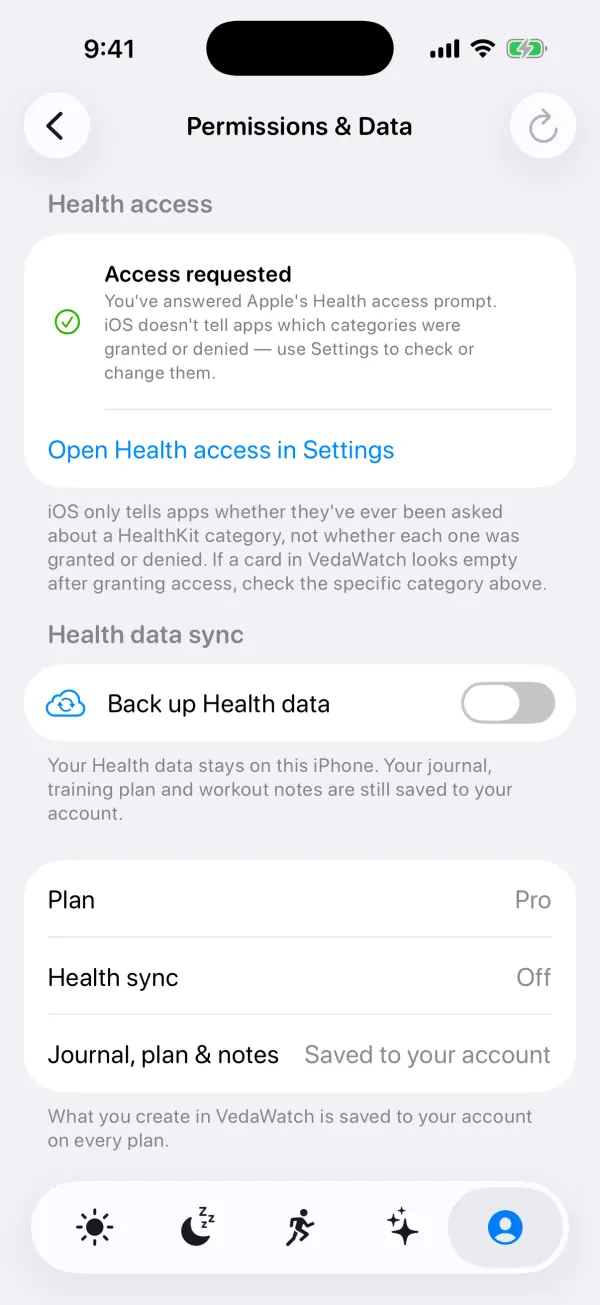
If you use VedaWatch, here's how each route works in practice. Most of the app, including your readiness score, sleep and workout screens, works from Health data on your iPhone with no AI involved. Your Health data is only copied to your VedaWatch account if you turn on Back up Health data, a Pro option that's off by default, and the server refuses it for accounts without Pro.
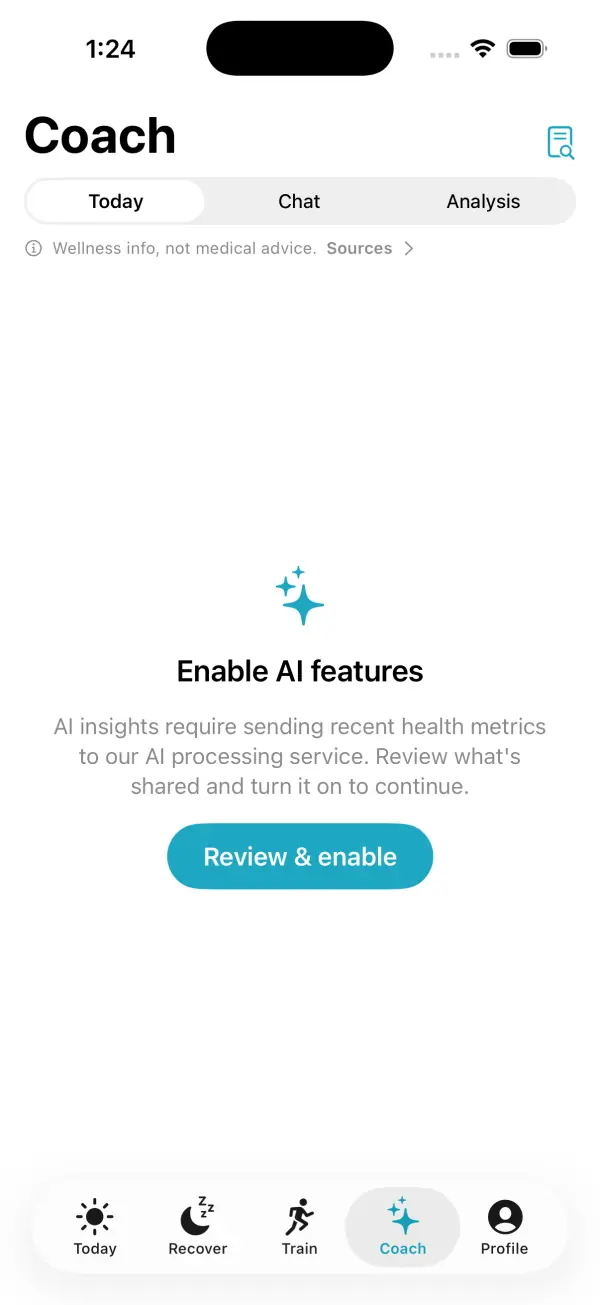
The Coach, Chat and Analysis features are a second, separate opt-in. Until you tap Review & enable and agree on the AI processing screen, nothing is sent. When it's on, VedaWatch sends daily summaries of the Health data you've synced, covering the last 7 to 30 days depending on the feature, to third-party AI models. It never sends your name, email, Apple ID, device identifiers or contacts. You can turn it off any time in Profile, under AI features, and reopen What data is sent? to read the full list. With Health sync off, synced Health data isn't used for AI.
For Claude, ChatGPT or Gemini, VedaWatch offers a connector under Profile, Connect an AI assistant. You approve it on a VedaWatch sign-in page, and the assistant gets read-only lookups for readiness, sleep, workouts, daily metrics, body measurements, meals, journal tags and your week plan. It can't edit or delete anything. The one exception is optional: if you switch on Let assistants suggest plan changes, an assistant can suggest a change to your plan, which waits on the Train tab until you tap Apply. Remove the connector in your assistant's settings to end access.
Health sync and AI features are part of VedaWatch Pro, which costs $6.99 a month or $59.99 a year on the US App Store as of November 2026.
Frequently asked questions
Does Apple share my Health data with AI companies?
Apple's Health app doesn't send your data to third-party AI tools on its own. A third-party app or assistant only gets Health data after you grant it permission in iOS, and from then on that app's privacy policy applies to what it does with it.
Can an app see which Health categories I said no to?
No. Apple's security guide says an app can't conclusively tell whether it was granted read access; a denied category just looks empty. That's why some apps show a blank card instead of an error.
Is uploading my Health export to a chatbot a bad idea?
It's the route that shares the most at once, because Apple's export includes everything in Health on that iPhone. If you only need one metric, share a trimmed file, a screenshot or a summary instead, and delete the chat afterwards.
If I remove a connector, is my data deleted?
Removing a connector stops new lookups, but anything the assistant already read is still in your past conversations. Delete those chats in the assistant if you want them gone.
Can an AI assistant change my Health data through a connector?
Only if the connector allows writing. Read-only connectors can look data up but can't log, edit or delete anything, so check this on the approval screen before you tap Approve.
Related guides
- How to connect Claude, ChatGPT or Gemini to your Apple Watch health data
- What is MCP? Model Context Protocol for your health data
- How to export Apple Health data (and convert it to CSV)
- Your Apple Health data in VedaWatch: privacy, backup sync, export and deletion
- Ask an AI coach about your Apple Watch data: what VedaWatch's Coach can do
- Best AI fitness coach apps for iPhone and Apple Watch (2026)
Sources & further reading
- Apple: Health App & Privacy
- Apple Platform Security: Protecting access to user's health data
- Apple Developer: App Review Guidelines (5.1.3 Health and Health Research)
- Apple Support: Manage Health data on your iPhone, iPad or Apple Watch
- Model Context Protocol specification: Authorization
- Federal Trade Commission: Complying with FTC's Health Breach Notification Rule
- World Health Organization (2021): Ethics and governance of artificial intelligence for health
- VedaWatch Privacy Policy
This guide is educational, not medical advice, and has not been clinically reviewed. VedaWatch is not a medical device. If you have symptoms or concerns about your heart or health, contact a qualified healthcare professional.
Put your trends in perspective.
Explore HRV, sleep, and recovery with VedaWatch on your iPhone.
Download VedaWatch on the App Store →