 VedaWatch
Using VedaWatch
How to connect Claude, ChatGPT or Gemini to your Apple Watch health data
Let Claude, ChatGPT or Gemini answer questions about your readiness, sleep and workouts. Add VedaWatch as a read-only connector, approve access, and remove it any time.
By VedaWatch editorial team · · 7 min read
The short answer
Copy the server URL from Profile → Connect an AI assistant in the VedaWatch iPhone app, add it as a custom connector in Claude, ChatGPT or Gemini, then sign in to VedaWatch and approve. The assistant can read your readiness, sleep, workouts, daily metrics, body measurements, meals and journal tags, but it can't change or delete anything.
What connecting an AI assistant does
General AI assistants are good at spotting patterns and explaining them in plain language, but they can't see your Apple Watch data on their own. VedaWatch's connector gives Claude, ChatGPT or Gemini a way to look it up when you ask, so you can type a question like "Using VedaWatch, how did I sleep this week and what's my readiness today?" and get an answer based on your own numbers.
The connector is built on the Model Context Protocol (MCP), an open standard that assistants use to talk to outside apps. You add VedaWatch once as a connector, sign in, and approve access. After that, the assistant can call VedaWatch whenever a question needs your data.
Access is read-only. The assistant can look things up, but it can't log meals, edit your journal, change settings or delete anything, and it only sees your own account.
Where to find the setup screen in VedaWatch
Everything you need is on one screen in the VedaWatch iPhone app. You need a VedaWatch account: if you're using the app without one, tapping the option asks you to create an account first.
The same setup is also on the web. Sign in at vedawatch.com and open Settings, where a card called Connect an AI assistant shows the same server URL, steps and tips.
- Open VedaWatch on your iPhone and tap the Profile tab.
- Scroll to the AI assistants section, below Web dashboard.
- Tap Connect an AI assistant. The AI assistants screen opens.
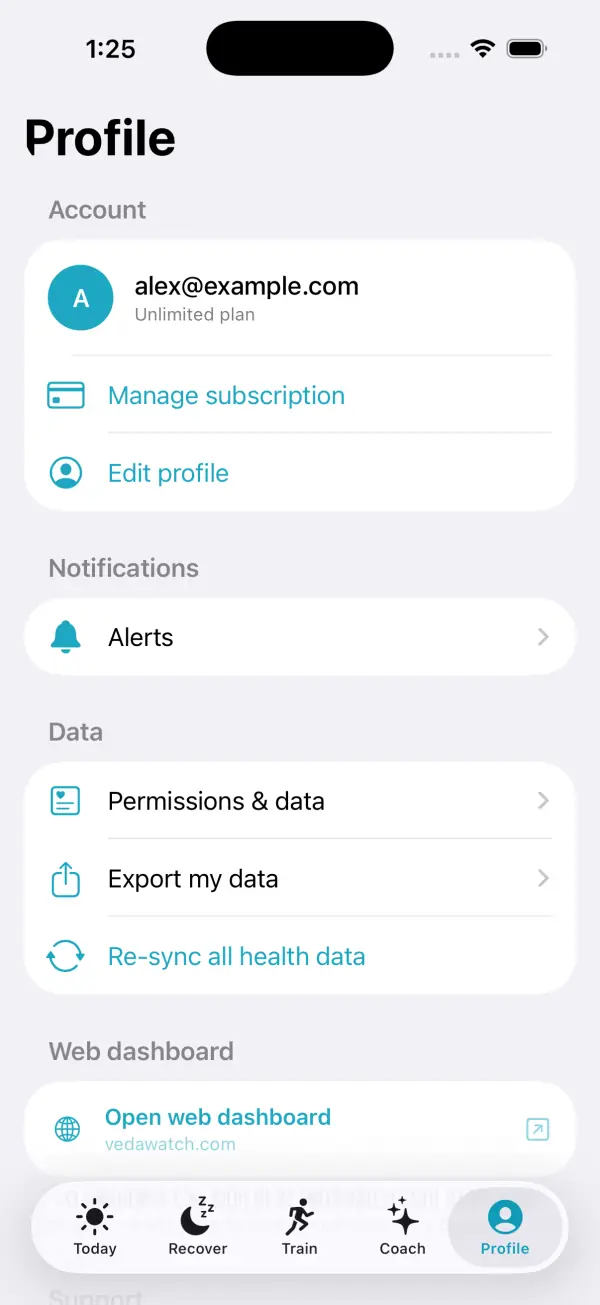
The server URL and the AI assistants screen
At the top of the AI assistants screen is the Server URL: the web address your assistant connects to. You don't need to type it. Tap Copy server URL and paste it into your assistant when the steps ask for it.
Below that, the Set up section has a tab for each assistant: Claude, ChatGPT and Gemini. Each tab shows numbered steps, a note about which accounts can use it, another Copy server URL button, and an Open button (Open Claude, Open ChatGPT or Open Gemini) that takes you to that assistant's site.
None of these assistants accepts a ready-made "add this server" link yet, so copying the URL and pasting it in their settings is the quickest way. At the bottom, under Then try asking, there's a sample question with a Copy question button so you can test the connection straight away.
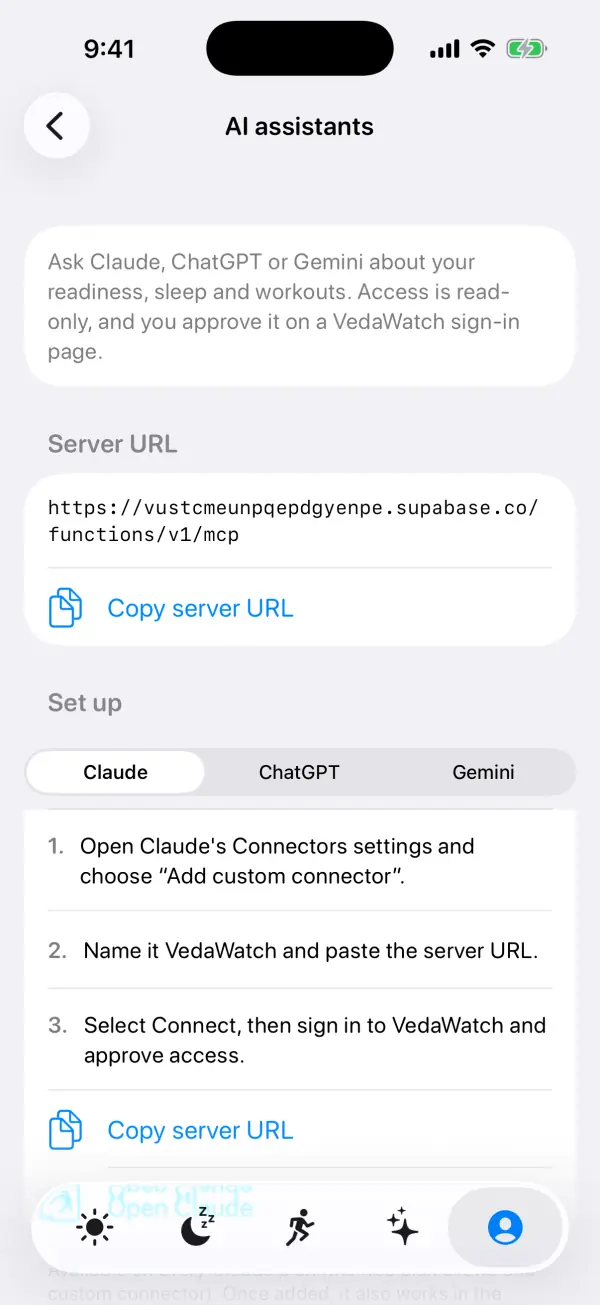
How to connect Claude, ChatGPT or Gemini
The steps below are the same ones the app shows for each assistant. Copy the server URL first, then follow the steps for yours. Assistants change their settings menus from time to time, so the labels you see may be slightly different.
Claude: 1. Open Claude's Connectors settings and choose "Add custom connector". 2. Name it VedaWatch and paste the server URL. 3. Select Connect, then sign in to VedaWatch and approve access. This works on every Claude plan, and the free plan allows one custom connector. Once added, it also works in the Claude iPhone app.
ChatGPT: 1. In ChatGPT settings, open Apps → Advanced and turn on Developer mode. 2. Choose Create, name it VedaWatch, paste the server URL and pick OAuth. 3. Sign in to VedaWatch and approve access. Custom servers have to be added on chatgpt.com, and only some plans have Developer mode. Once added, ChatGPT's mobile app can use it.
Gemini: 1. In Gemini, open Settings → Connected apps and add an app by URL. 2. Paste the server URL. 3. Sign in to VedaWatch and approve access. This is still rolling out: Google currently limits custom apps to personal accounts in the US, 18+, with Gemini Apps Activity on.
- In VedaWatch, go to Profile → Connect an AI assistant and tap Copy server URL.
- Pick the tab for your assistant and tap Open Claude, Open ChatGPT or Open Gemini.
- Add a custom connector (Claude), a Developer mode app (ChatGPT) or a connected app (Gemini) named VedaWatch, and paste the server URL.
- When the assistant sends you to VedaWatch, sign in and tap Approve.
- Back in the assistant, ask the sample question: "Using VedaWatch, how did I sleep this week and what's my readiness today?"
Approving access on the VedaWatch sign-in page
When you connect, the assistant sends you to a VedaWatch page titled Connect [app name] to VedaWatch. If you're not signed in yet, you sign in first. Your password goes to VedaWatch, never to the assistant.
The page tells you what you're agreeing to. It says the app can read your VedaWatch data as you and can't change or delete anything. It shows which account you're signed in as, the site you'll be sent back to, and a list of what the app will be able to read: today's readiness score and verdict, recent workouts, daily health metrics like steps, heart rate and HRV, and meals and journal tags you logged. If the app also asks to confirm who you are or see your email address, those requests are listed too.
Check the account and the return site, then tap Approve, or Cancel connection if anything looks wrong. If you're signed in to the wrong VedaWatch account, tap Use a different account. Connection requests expire, so if you see Connection unavailable, start again from your assistant.
What data the assistant can see
VedaWatch gives the assistant eight lookup tools. Readiness: today's readiness score (0–100), the push, hold or rest verdict, and the HRV, resting heart rate and sleep signals behind it. It uses the same calculation the app shows, not a separate copy. Sleep: each night's time asleep plus deep, REM and core sleep and time awake, for up to 31 nights.
Workouts: a list of recent workouts (up to 90 days) with activity, duration, distance, calories and heart rate, and the details of any one workout, including its heart rate trace and estimated time in each heart rate zone. Daily metrics: day-by-day activity (steps, active and resting energy, exercise and stand minutes, distances, flights, walking speed), heart and breathing (resting, average and walking heart rate, HRV, respiratory rate, blood oxygen) and nutrition logged in Apple Health, for up to 90 days.
Body measurements: VO2 max, weight, body fat and sleeping wrist temperature over up to a year, with the latest value and change for each. Meals you logged in VedaWatch with calories and macros, and the lifestyle tags in your journal, such as alcohol, late meal or stress.
Days are counted as UTC calendar days, so depending on your time zone, an evening workout or meal can land on the next or previous day. The assistant decides which tools to use from your question, so asking about a specific period ("last 14 days") gets more focused answers.
Why the assistant might not see your Apple Health data
Your Apple Health data only reaches VedaWatch's servers if cloud health sync is turned on in the iPhone app. Sync is opt-in and available to Pro members, under Profile → Permissions & data. Without it, the connector has nothing new from Apple Health to read.
If sync is off, the AI assistants screen says so: assistants can see your journal and meals but no new Apple Health data. The assistant also gets a short explanation when a lookup comes back empty, so it can tell you why rather than guessing. If you synced data earlier and kept it, that older data is still available.
If sync is on but a question still comes back empty, the data may not have synced yet. Open VedaWatch on your iPhone to let it catch up, then ask again.
How read-only access and revoking work
The assistant connects with a token that VedaWatch issues after you approve. That token can only read, and only your own data, under the same privacy rules that apply when you use the app. VedaWatch blocks it from writing to your data and from account actions such as exporting your data, managing your subscription or deleting your account.
Keep in mind that whatever the assistant reads becomes part of your conversation with it, and that conversation is handled under the assistant's own privacy policy, not VedaWatch's. Only connect assistants you're comfortable sharing health information with.
To stop access, remove or disconnect the VedaWatch connector in your assistant's settings: Connectors in Claude, Apps in ChatGPT, or Connected apps in Gemini. The AI assistants screen in VedaWatch doesn't list connected apps today, so the assistant's settings are the place to do it. Turning off cloud health sync also stops new Apple Health data from reaching any connected assistant.
Common questions
Do I need VedaWatch Pro? You need a VedaWatch account to connect. Your journal and meals are available on any account, but Apple Health data such as sleep, workouts and HRV needs cloud health sync, which is a Pro feature.
Can the assistant change my data? No. The sign-in page says so, and VedaWatch rejects any attempt to write with the assistant's token.
Does it work on my phone? Yes, once added. Claude and ChatGPT both let you use the connector in their mobile apps after you add it. ChatGPT custom servers have to be added on chatgpt.com first.
Why does the assistant give different answers from the app? Readiness uses the same calculation, but the assistant summarises and interprets the numbers in its own words, and it may pick a different date range than the screen you're comparing with. When in doubt, ask it for the exact values and the days it looked at.
Is this medical advice? No. VedaWatch's data is wellness information, and the connector tells assistants that too. Talk to a doctor about symptoms or health concerns.
How it fits with the rest of VedaWatch
The connector is a window onto the same numbers you see in the app. Your readiness score and its verdict come from the Today and Recover screens, sleep stages from last night's sleep, workouts and heart rate zones from Train, and meals and journal tags from what you logged yourself.
That makes it useful for questions that cut across screens, like "Did my HRV dip after the days I tagged alcohol?" or "How did my long runs this month affect my sleep?" For a structured answer inside the app, VedaWatch's own Coach tab is still there too.
A good routine is to keep logging journal tags and meals in VedaWatch, keep health sync on if you're a Pro member, and ask your assistant for a weekly recap. The more complete your data, the more useful its answers.
Sources & further reading
- Model Context Protocol: Introduction
- Model Context Protocol specification: Authorization
- Anthropic Help Center: Getting started with custom connectors using remote MCP
- OpenAI: ChatGPT Developer mode
- IETF RFC 6749: The OAuth 2.0 Authorization Framework
This guide is educational, not medical advice, and has not been clinically reviewed. VedaWatch is not a medical device. If you have symptoms or concerns about your heart or health, contact a qualified healthcare professional.
Put your trends in perspective.
Explore HRV, sleep, and recovery with VedaWatch on your iPhone.
Download VedaWatch on the App Store →