 VedaWatch
Workouts & Training
Train by readiness: how VedaWatch picks today's workout from your Apple Watch data
How VedaWatch's daily coach turns readiness, recent training, soreness and your level and equipment into one guided session, explains why, and steps up as you get stronger.
By VedaWatch editorial team · · 8 min read
The short answer
Each day VedaWatch suggests one guided session on the Train tab. Your readiness sets how hard it is, muscles you worked hard in the last 48 hours or marked as sore are rested, and your level and equipment decide which exercises fit. Tap "Why this?" to see every reason, and swap it, shorten it or make it easier if the day calls for it.
What "Today's session" is
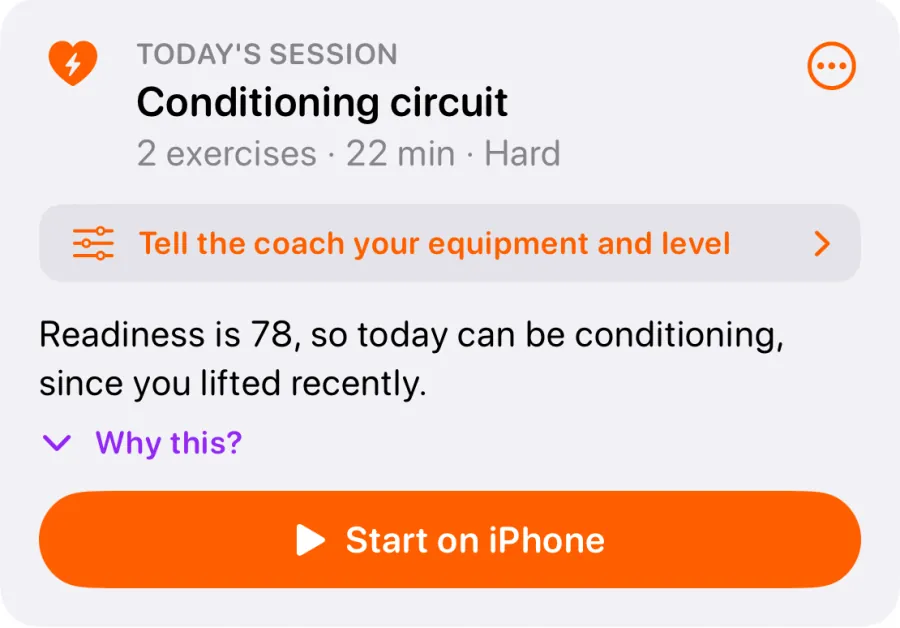
At the top of the Train tab in the VedaWatch iPhone app is a card called Today's session. It's one guided workout picked for you that day: a title, a summary line such as "5 exercises · 30 min · Moderate", the main reason it was chosen, and buttons to start it.
The session can be strength (full body, upper body, lower body, or core and mobility), an easy Zone 2 walk or run, intervals, a conditioning circuit, a tempo session or a mobility and stretch session. Which one you get depends on how recovered you look, what you trained recently and what you've told the coach about yourself.
The same inputs always give the same session, so the card doesn't reshuffle every time you open the app. It changes when something real changes: new readiness, a finished workout, a soreness check-in, new preferences, or a swap you ask for.
How readiness decides the kind of day
The starting point is your VedaWatch readiness score, which compares your HRV, resting heart rate and sleep with your own baseline. A score of 70 or more counts as a push day, 50 to 69 as a hold day, and below 50 as a rest day.
On a push day you get a hard session. If you haven't lifted in the last 36 hours, that's a hard strength session. If you have, it's intervals when you've been running lately, or a conditioning circuit when you haven't, so the muscles you lifted with get a break. The card in the screenshot is exactly that case.
On a hold day the session is moderate: strength at "2 to 3 reps in reserve", or easy Zone 2 if you lifted in the last 36 hours. On a rest day you get a gentle mobility session of 20 minutes or less.
If your readiness is still calibrating, or there's no score yet today, the coach picks a moderate session and tells you to go by feel.
Training load, Daily Charge and sore muscles
Readiness isn't the only input. If your training load is spiking (a high acute to chronic workload ratio), nothing hard is planned and the day becomes easy Zone 2. If load is climbing, a hard day is turned down to moderate. If your load has dropped lately, the coach says so and keeps a full session.
Daily Charge trims the length. Below 30, the session is about 25% shorter and one step easier. Below 45, it's about 15% shorter. At 75 or more on a hard day, the reasons simply note that you have plenty in the tank.
Muscles get a rest too. Every completed set in a guided session counts towards the muscles it works, and Apple Health workouts count by duration: a run loads your legs, a row loads your back and legs. A muscle with three or more points in the last 48 hours counts as hit hard, and so does anything you marked as sore in a post-session check-in. If only your legs were hit, you get upper-body strength. If only your upper body was, lower body. If both were, core and mobility. Sore legs on a Zone 2 day mean a walk instead of a run.
The session detail screen lists what's resting under Muscles worked, for example "Resting today: quads (trained yesterday)".
How the coach picks exercises and steps you up
For strength days the coach fills movement slots (squat, hinge, push, pull, core, lunge and so on) with one exercise each. It only picks exercises you can do with your equipment, at or below your level, and that don't load a muscle that's resting. Exercises you've done before are preferred, so you can build on them.
Sets, reps and weight come from your own history with that exercise. The first time, you get a rep target and "pick a weight you could lift 2 to 3 more times" rather than a guessed weight. After that it uses double progression: when you hit every rep, the reps go up by one until the top of the range, then the weight goes up and the reps drop back. Step sizes are 2 kg for most dumbbell moves, 2.5 kg for barbell upper-body lifts, 4 kg for kettlebells and 5 kg for barbell lower-body lifts, or 5 to 10 lb if you use pounds.
Miss reps twice in a row at the same weight and the coach takes about 10% off to rebuild. Bodyweight moves step up to a harder variant once you top out (or down to an easier one after two tough sessions). If today's rep range is different from last time, the weight is worked out from your estimated one-rep max using the Epley formula.
Low readiness also shapes the numbers. Easy days never add weight or reps, and on a rest-day verdict any loaded lift is about 10% lighter than last time.
Reading "Why this?"
The card shows the most important reason. Tap "Why this?" to open the full list, most important first. A typical list reads: "Readiness is 78, so today can be conditioning, since you lifted recently.", then a note about training load or Daily Charge if they mattered, then the most telling progression notes, such as "You hit all reps last time: +2 kg on goblet squat.", and finally which equipment it's built around.
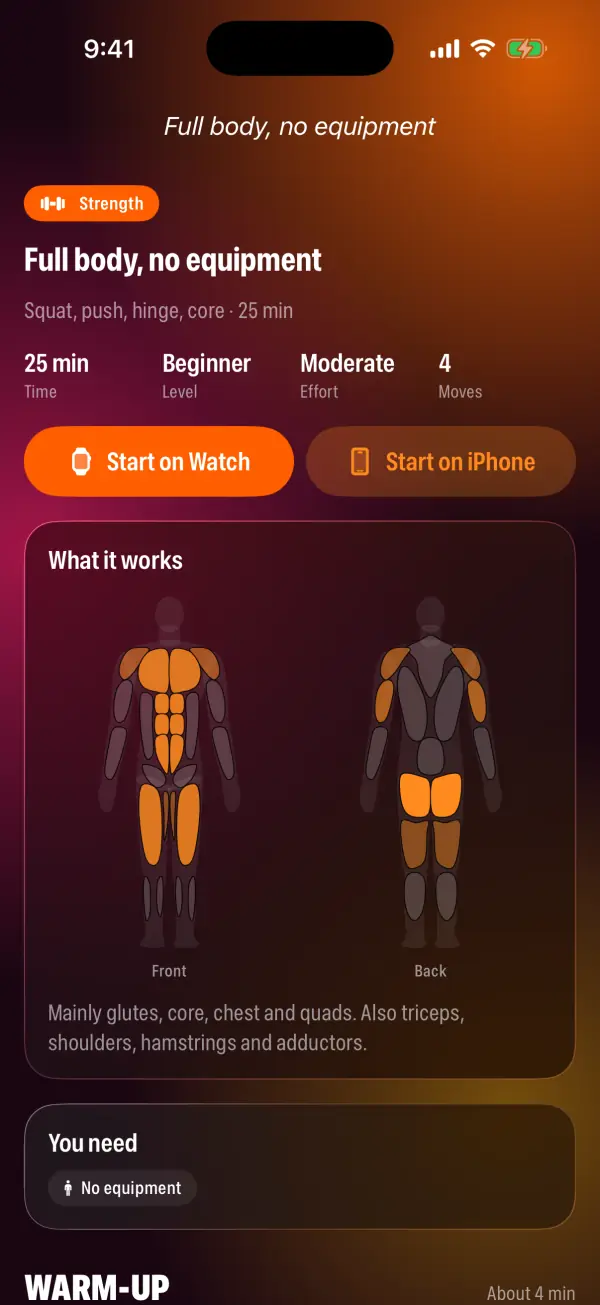
Tap the card itself to open the full session screen. It repeats the reasons under Why this session, shows a muscle map under Muscles worked, and lists the Warm-up, Main and Cool-down blocks with sets, reps, weight, heart rate zones and rest. Notable steps carry their own one-line reason, like a light warm-up set "at about half your working weight".
When a training plan is active, the plan's session for the day comes first and the screen shows "From your training plan". Training plans are a Pro feature. Without one, the coach works from your signals alone.
How to set up and use today's session
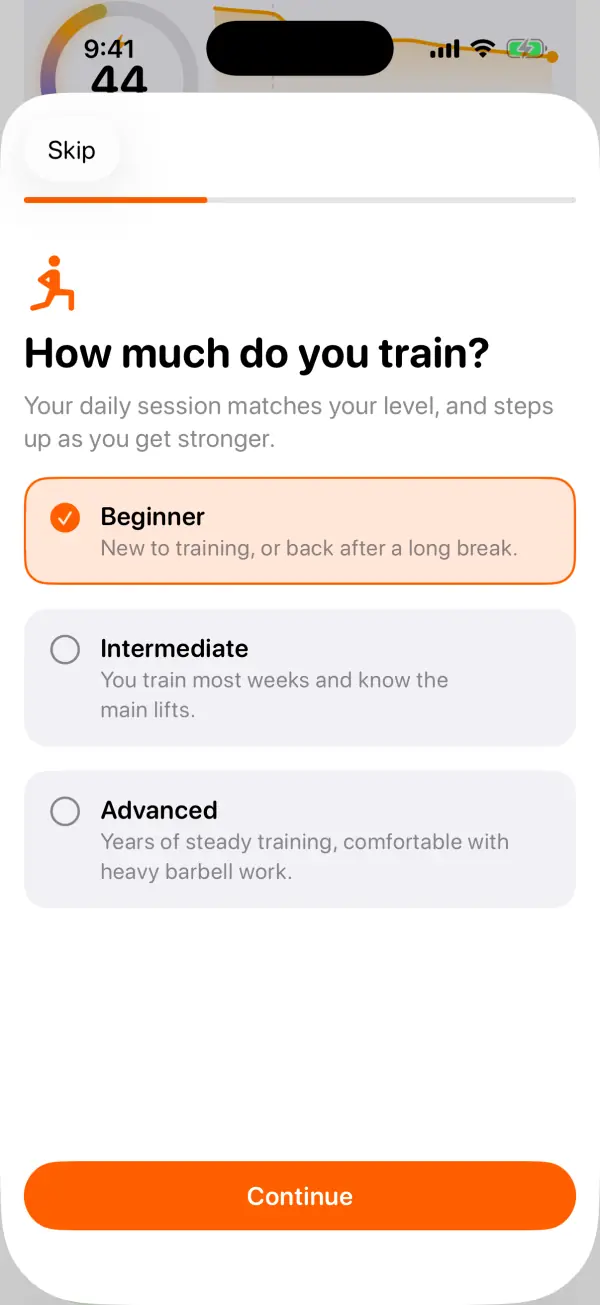
The first time you start a session, or when you tap "Tell the coach your equipment and level" on the card, a short setup asks three things. If you skip it, the coach uses bodyweight exercises and 30-minute sessions.
- Open VedaWatch on your iPhone and go to the Train tab. Today's session is the first card.
- Tap "Tell the coach your equipment and level". Under "How much do you train?" pick Beginner, Intermediate or Advanced, then tap Continue.
- Under "What do you have?" select every piece of equipment you can use, such as dumbbells, a kettlebell, a pull-up bar or a cardio machine. Bodyweight exercises are always included.
- Under "How long, usually?" choose 15, 20, 30, 45 or 60 minutes and kilograms or pounds, then tap "Save and build my session".
- Back on the card, read the top reason, or tap "Why this?" for all of them. Tap the card to see every step.
- Tap Start on Watch to send it to your Apple Watch, or Start on iPhone to follow it on your phone. Start on Watch appears when your watch is paired and has VedaWatch installed.
- To change your answers later, open Coach preferences under Guided training on the Train tab, or from the ••• menu on the card.
Swapping, shortening and skipping
The ••• menu on the card has three quick changes. Swap exercises (or Swap activity on a cardio day) picks the next-best option for every slot. Shorter cuts the session to about 60% of its length. Easier drops it one step in effort, with fewer sets and no added weight. Each change adds a chip to the card, and Undo or "Back to the original" returns to the first version.
These changes only last for the day. Tomorrow starts fresh. There's no skip button: if today isn't a training day, just don't start it. Once you've done the session, the card changes to Done today and shows how long you trained.
Session length always ends up in 5-minute steps, never under 10 minutes. Plan days keep their own length.
Common questions
Why did I get conditioning when I wanted to lift? On a high-readiness day, if you lifted in the last 36 hours, the coach picks hard cardio instead, unless only one half of your body was worked hard, in which case it lifts the fresh half. Use Swap, or check back tomorrow.
Why is it a strength day when my legs are sore? It shouldn't load them. If you marked legs as sore after your last session, the coach picks upper body or core, and nothing in the session works those muscles directly. Very sore muscles are also kept out of supporting roles.
Does the coach replace a doctor or a trainer? No. It's a way to match a session to how your body looks today, based on the same Apple Health data VedaWatch already reads. If something hurts or you feel unwell, stop and get advice from a professional.
Is the coach free? Yes. Today's session, the reasons and the preferences are available without Pro. Only the training plan that can feed it is a Pro feature.
Sources & further reading
- Medicine & Science in Sports & Exercise (2009): ACSM position stand. Progression models in resistance training for healthy adults
- Strength and Conditioning Journal (2016): Application of the repetitions in reserve-based rating of perceived exertion scale for resistance training (Helms et al.)
- European Journal of Applied Physiology (2007): Endurance training guided individually by daily heart rate variability measurements (Kiviniemi et al.)
- British Journal of Sports Medicine (2016): The training-injury prevention paradox (Gabbett)
- World Health Organization: Guidelines on physical activity and sedentary behaviour (2020)
This guide is educational, not medical advice, and has not been clinically reviewed. VedaWatch is not a medical device. If you have symptoms or concerns about your heart or health, contact a qualified healthcare professional.
Put your trends in perspective.
Explore HRV, sleep, and recovery with VedaWatch on your iPhone.
Download VedaWatch on the App Store →