 VedaWatch
Recovery & Apple Watch
Apple Watch HRV: how to check it and understand your trends
Find your Apple Watch heart rate variability in Apple Health, understand your personal baseline, and troubleshoot missing HRV readings without overreacting to one number.
By VedaWatch editorial team · · 6 min read
The short answer
Check HRV in the Health app on your iPhone, then compare your recent readings with your own history—not someone else’s score. Sleep, resting heart rate, and how you feel add important context.
What is heart rate variability?
Heart rate variability (HRV) describes variation in the time between successive heartbeats. It is different from heart rate: heart rate counts beats per minute, while HRV looks at the spacing between those beats.
Apple Watch records HRV measurements that you can review in Apple Health. HRV is one piece of information about your body, not a diagnosis, a fitness grade, or a stand-alone instruction to train harder. Different devices and measurement methods can produce different values, so comparisons across products can be misleading.
How to check HRV from your Apple Watch
The most useful place to start is Apple Health on the iPhone paired with your watch. Labels may vary slightly with your iOS version.
- Open the Health app on your iPhone.
- Use Search, or open Browse → Heart → Heart Rate Variability.
- Choose a day, week, or month to review how your readings change over time.
- Scroll down to Show All Data to inspect individual readings and their timestamps. Data Sources & Access helps you check which device or app supplied them.
What is a good HRV for you?
There is no single target in milliseconds that makes sense for everyone. Your age, measurement conditions, personal physiology, and recent routine can all affect the number. A friend’s HRV is not your benchmark.
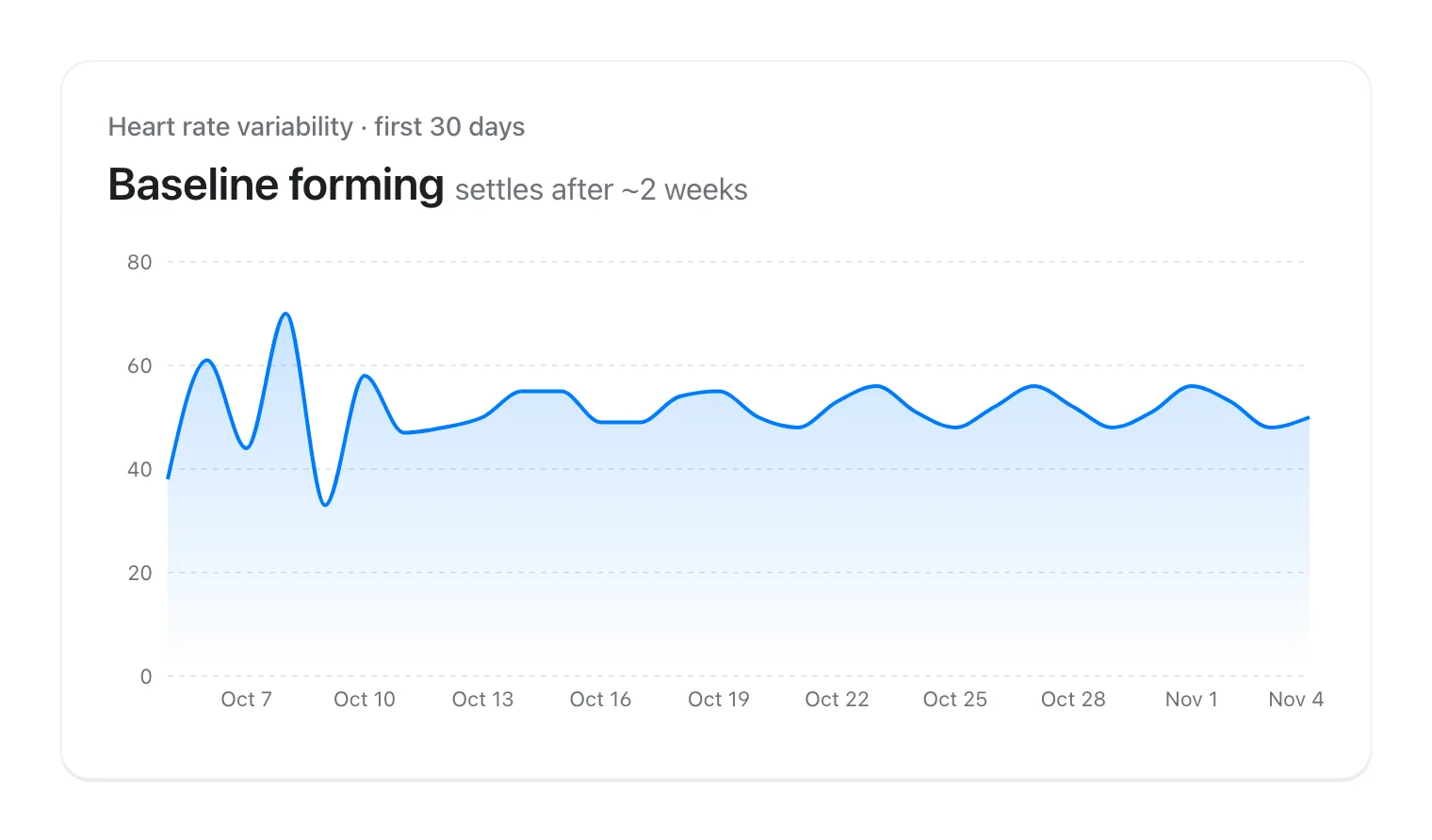
Start by reviewing several weeks of your own readings. Look for your usual pattern and whether a change persists across multiple days. Try to compare readings collected under similar conditions, rather than treating a spot measurement after a breathing session as equivalent to every overnight reading.
A lower-than-usual reading can be a reason to check in with yourself, but it does not prove that you are under-recovered or ill. A higher number is not automatically better, either. Avoid making a major training decision from one measurement.
Read HRV alongside sleep and resting heart rate
Context makes trends more useful. Review whether you slept less than usual, whether your resting heart rate changed, and whether your recent workouts were unusually demanding. Also consider how you actually feel: soreness, tiredness, and symptoms matter even when a watch reading looks normal.
If several signals look unusual and you feel run-down, consider an easier session or rest rather than chasing a score. If one HRV reading dips but the rest of your week looks typical, watch the trend before drawing conclusions. Neither pattern can predict an injury or rule out a medical problem.
Why is Apple Watch HRV missing?
Wearing your watch does not guarantee a continuous HRV stream. Apple notes that HRV sampling occurs while you are still, and the number of measurements varies with activity. Gaps should not be interpreted as zero HRV.
If readings appear in Health but not in another app, that app may not have permission to read HRV. A missing reading in VedaWatch does not necessarily mean your watch stopped collecting data.
- First check Heart Rate Variability → Show All Data in Apple Health for recent samples.
- Check that your watch fits comfortably and stays in contact with your wrist; Apple’s heart-rate guidance explains how fit affects sensor readings.
- If Health has samples but VedaWatch does not, review VedaWatch’s Health data permissions and enable Heart Rate Variability. Depending on iOS, these appear in Health under your profile → Apps, or in Settings → Health → Data Access & Devices.
- Reopen VedaWatch after changing permissions. If Health itself has no recent readings, review the watch’s settings and Apple’s sensor guidance before assuming an app sync problem.
Follow your recovery trends in VedaWatch
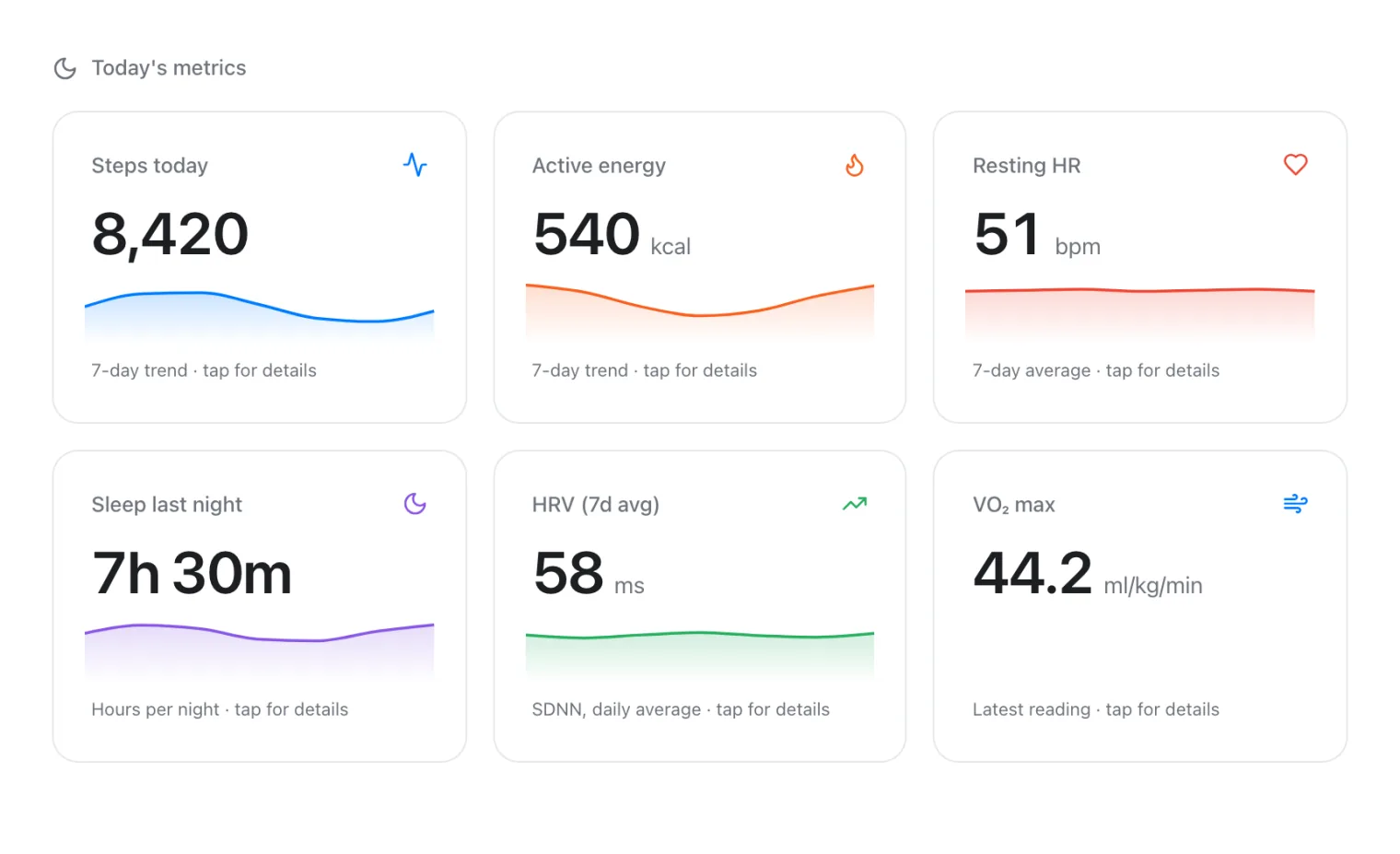
VedaWatch’s iPhone Recovery view brings together HRV, resting heart rate, sleep, and other available signals from Apple Health. With permission, it reads the health data available on your device; it cannot fill in measurements your watch never recorded.
Start with your trend, then use the wider recovery picture to decide what deserves attention. AI coaching is optional, requires your permission to share relevant data for processing, and is subject to your plan’s limits. It is not needed to check HRV in Apple Health.
Common questions about Apple Watch HRV
Is HRV the same as recovery heart rate? No. HRV describes beat-to-beat timing variation. Recovery heart rate describes how your heart rate falls after exercise.
Can I compare Apple Watch HRV with another tracker? Be cautious. Sampling conditions, timing, and calculation methods may differ. Comparing your own history within the same system is usually more useful.
Should I skip a workout when HRV drops? Not based on one number alone. Consider your sleep, resting heart rate, recent training, symptoms, and how you feel. Seek professional advice if you have persistent concerns.
Sources & further reading
- Apple Support: Monitor your heart rate with Apple Watch
- Apple Support: Intro to Health data on iPhone
- Apple Support: Track your overnight and daytime vitals
This guide is educational, not medical advice, and has not been clinically reviewed. VedaWatch is not a medical device. If you have symptoms or concerns about your heart or health, contact a qualified healthcare professional.
Put your trends in perspective.
Explore HRV, sleep, and recovery with VedaWatch on your iPhone.
Download VedaWatch on the App Store →