 VedaWatch
Workouts & Training
Guided strength workouts on Apple Watch: step-by-step sessions with spoken cues and rep counting
How VedaWatch's guided training works: pick a session or exercise from the library, start it on Apple Watch or iPhone, follow timers and spoken cues, and let your watch count reps.
By VedaWatch editorial team · · 8 min read
The short answer
VedaWatch's Guided library holds ready-made sessions and a searchable exercise catalog with a muscle map. Start any session on your Apple Watch or iPhone and the player walks you through every warm-up, set, rest and stretch with timers and spoken cues. On Apple Watch it can also count many strength reps from your wrist motion, and finished sessions are saved to Apple Health.
What guided training in VedaWatch is
Guided training turns a workout into a list of steps you follow one at a time: a warm-up, your work sets with rests in between, and a cool-down. Each step has either a timer (for example 40 seconds of plank) or a rep target (for example 12 bodyweight squats), and the app tells you what is next so you don't have to remember the plan or watch a clock.
Everything starts from the Guided library on the Train tab of the iPhone app. It holds more than 40 ready-made sessions and well over 100 exercises, from bodyweight strength to dumbbell, kettlebell and gym sessions, plus conditioning, intervals, Zone 2, mobility and recovery. You can play any session on your Apple Watch or on your iPhone.
The sessions are general fitness guidance, not a medical or rehabilitation programme. If you have an injury, a heart condition or another health concern, check with a qualified professional before starting a new strength routine, and stop if something hurts.
Browsing the Guided library: sessions, filters and equipment
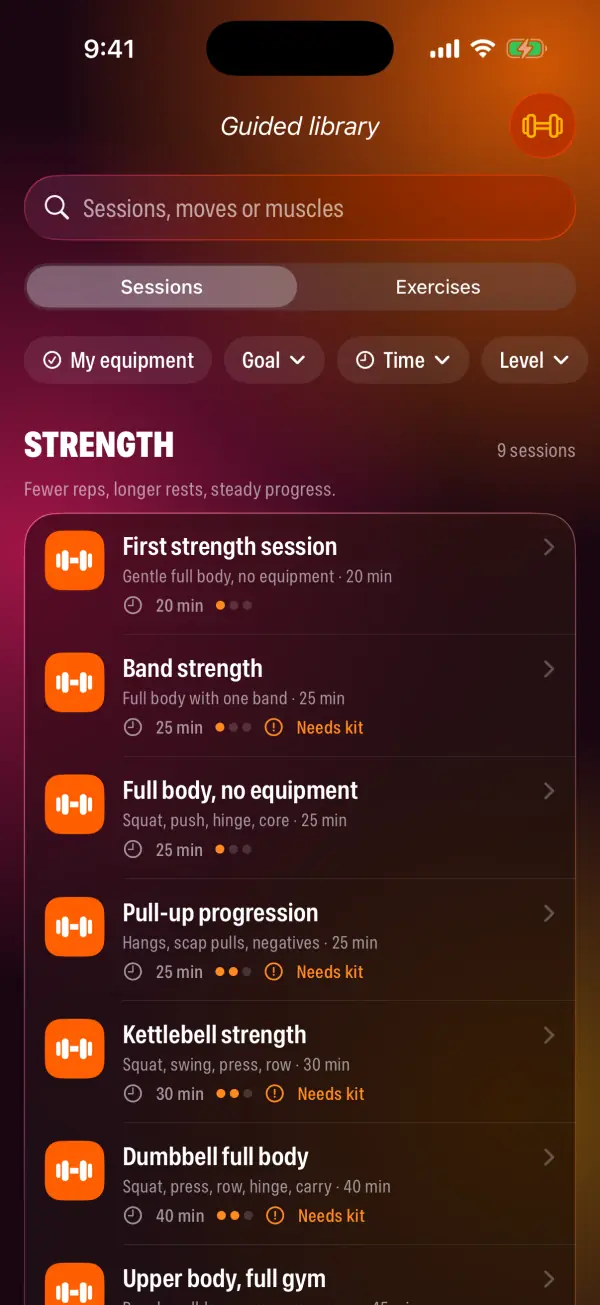
The library has two tabs at the top: Sessions and Exercises. On the Sessions tab, sessions are grouped by goal: Strength, Muscle, Conditioning, Intervals, Zone 2, Mobility and Recovery. Within each group the shortest sessions come first. Each row shows the session's length, a three-dot level (Beginner, Intermediate or Advanced) and, if it needs equipment you haven't added, a Needs kit label.
Below the search field is a row of filter chips. My equipment hides anything you can't do with what you own. Goal, Time (15 min or less, 16–30 min, 31–45 min or 45+ min), Level and Body area (Upper body, Lower body, Core or Full body) narrow the list further. The search box matches session names, exercises inside a session, muscles and equipment, so typing "kettlebell" or "glutes" works. Clear filters resets everything.
To tell the app what you own, tap the dumbbell button at the top right of the library. Bodyweight exercises and a mat are always counted as available, so they never hide a session.
Reading a session: muscle map, equipment and steps
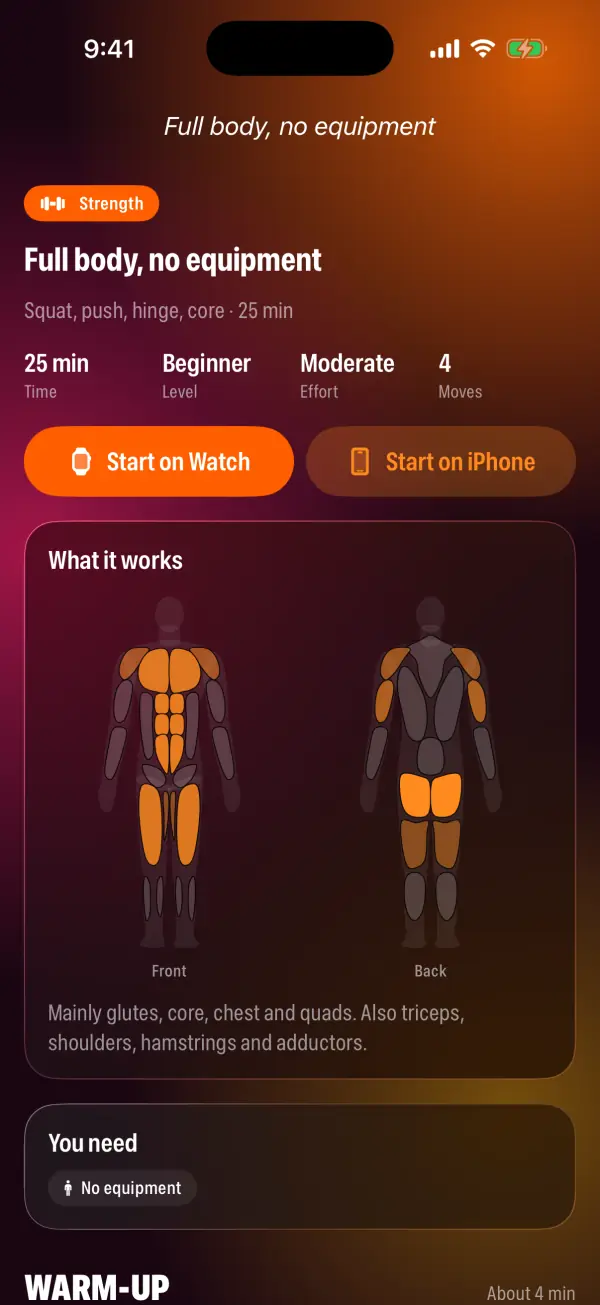
Tap a session to open its page. At the top you'll see its goal, a short summary and four numbers: Time, Level, Effort (easy, moderate or hard) and how many different Moves it uses. Right below are the two start buttons, Start on Watch and Start on iPhone.
The What it works card shades a front and back body map. Every work set adds to the muscles its exercise trains, with main muscles counting fully and supporting muscles partly, so the darkest areas are the ones the session hits most. A sentence below sums it up, for example "Mainly glutes, core, chest and quads. Also triceps, shoulders, hamstrings and adductors."
The You need card lists the equipment. If something is missing from your equipment, a note tells you so, but you can still start the session. Further down, the full outline is split into Warm-up, the main block and Cool-down, each with an approximate time, and repeated sets are shown as rounds. Times are estimates, because rep sets end when you tap Done. Tap any exercise in the outline to see how to do it.
The exercise library and muscle map
Switch to the Exercises tab to browse moves on their own. A body map at the top says "Tap a muscle": tap one, such as quads or lats, or pick it from the row of muscle chips, and the list shows exercises that train it. Exercises that work it as a main muscle come first, then those that work it as a supporting muscle, easiest first.
You can narrow the list by Type (Legs, Hinge, Push, Pull, Core, Power, Cardio or Mobility), by Equipment, by Level, or with My equipment. Each exercise page shows its muscles on the map with a Main and Also legend, the equipment it needs, numbered How to do it steps, short coaching Cues, Easier and Harder swaps, and the sessions that include it under In these sessions.
Swaps are handy when you don't have the kit for a move or it feels too hard or too easy today. If an exercise needs equipment you don't own, its page says "Not in your equipment yet. Try a swap below."
How to start a guided session on Apple Watch or iPhone
You choose the device each time you start. Starting on the watch is best when you want heart rate and wrist-based rep counting; starting on the iPhone is handy when your phone is propped up in front of you.
- Open VedaWatch on your iPhone and go to the Train tab.
- Under Guided training, tap Guided library.
- Pick a session from the Sessions tab, using the filters or search if you like.
- Tap Start on Watch to send it to your Apple Watch. The app confirms "Sent to your Apple Watch. Open VedaWatch there if it doesn't start." On the watch, the session appears with its steps and a Start button.
- Or tap Start on iPhone to open the full-screen iPhone player straight away.
- Sessions sent to the watch also wait in the Guided section at the top of the watch app's workout list, so you can start one later. Sessions you've done before appear under Guided again.
Inside the player: timers, Done and Skip, and How to do it
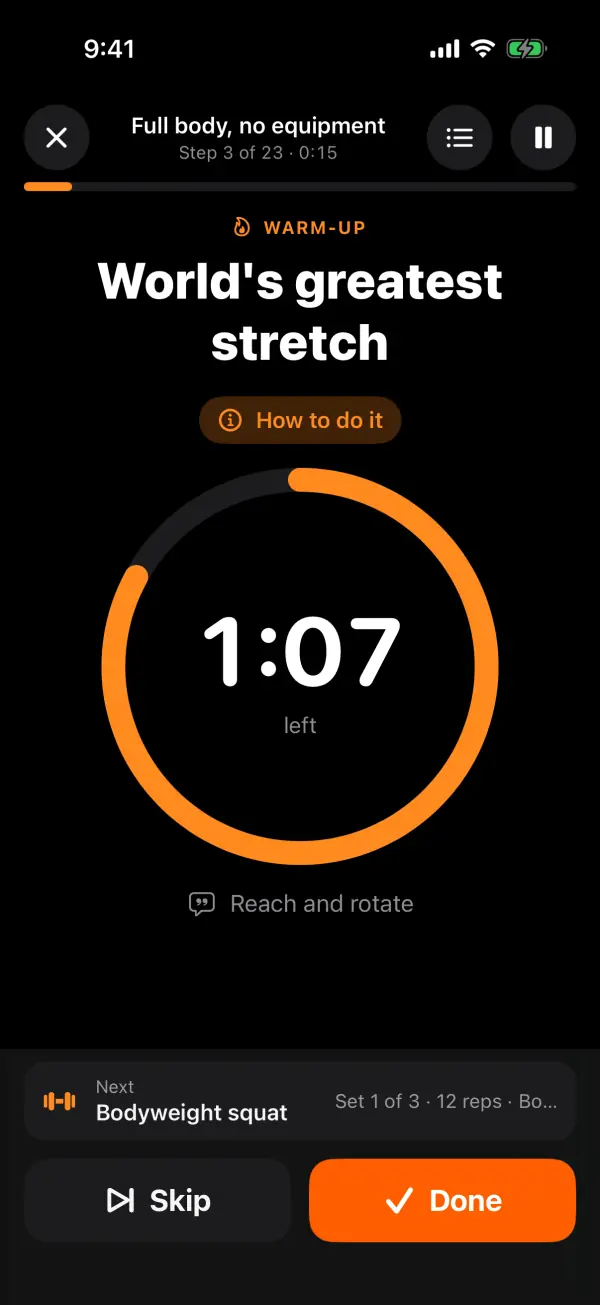
The player shows one step at a time: whether it's a warm-up, work, rest or cool-down step, the exercise name, and a big centrepiece. Timed steps show a ring that drains as the time runs out, and move on by themselves when it reaches zero. Rep steps show the target reps with minus and plus buttons so you can record what you actually did, plus a weight row for exercises you can load. Steps with no fixed length count up until you tap Done.
Along the bottom you'll see what's next, then the controls. On a work step that's Skip and Done. On a rest it's +15 s and Skip rest. The top bar shows the step number, the elapsed time, a list button for every step in the session, and a pause button. Tap How to do it at any time for the current exercise's steps, cues and muscle map.
To stop early, tap the close button. You can choose End and save, which keeps what you've done so far, or Discard session. On the iPhone, if the app is closed mid-session, it can pick up where you left off for up to 12 hours, paused at the point it stopped.
The watch player works the same way on a smaller screen, with your live heart rate, a ring for timed steps, Next and Skip, and End and Pause controls. When you tap Done on a rep set, you confirm the reps and weight with the Digital Crown before moving on.
Spoken cues, Live Activity, Apple Health and your summary
With spoken cues on, the player names each step as it starts, for example the exercise, set 2 of 3 and 12 reps, then the coaching cue. On timed steps it says "Halfway." on work steps of 40 seconds or more, gives a 10-second warning with what's next, and counts down 3, 2, 1. Cues play over your music in a recorded coach voice, and other audio is only lowered while a cue plays. Haptic cues tap at each change. Both can be switched on or off in Coach preferences under During a session, and the watch player also has a Voice toggle.
When you play a session on the iPhone, a Live Activity shows the current step, its countdown, the set and what comes next on the Lock Screen and in the Dynamic Island. On iOS 26 and later the iPhone runs a real workout session, so the clock and spoken cues keep going with the screen locked. On older iOS versions, upcoming step changes are delivered as notifications instead, but only if you've already allowed notifications.
Finished sessions are saved to Apple Health as a workout, as long as you've allowed VedaWatch to save workouts. The summary screen tells you whether it worked, with lines such as "Saved to Apple Health" or, if permission is off, a pointer to Settings › Health. On Apple Watch, the session is recorded as a workout while you train, and the result is sent back to your iPhone history.
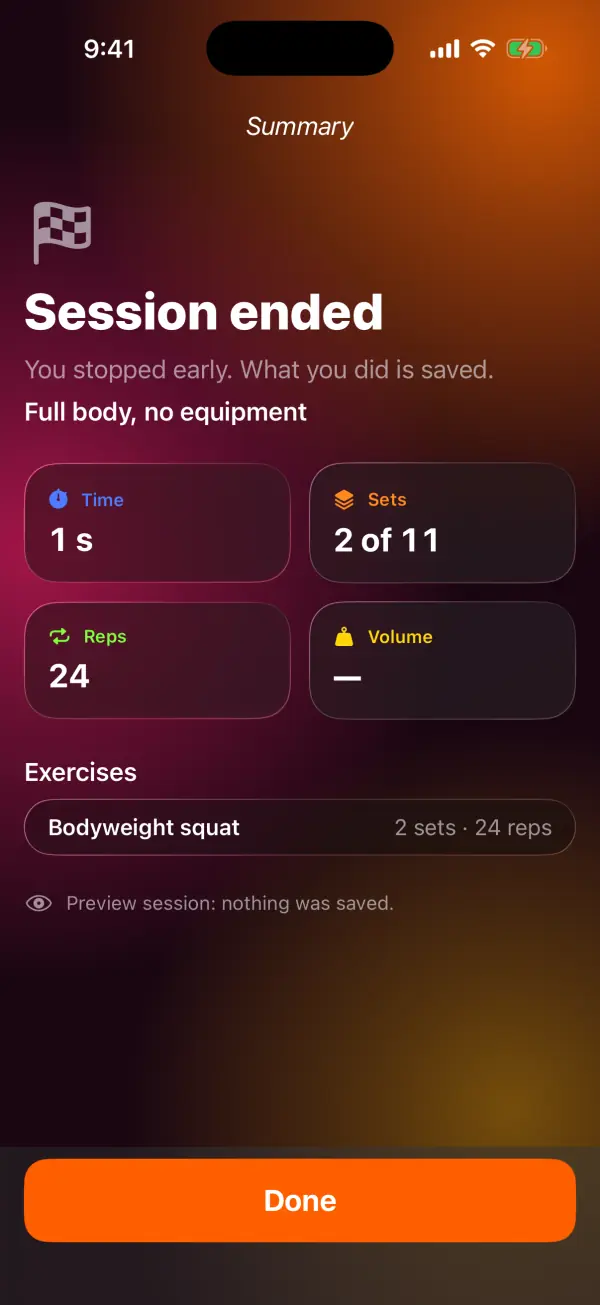
When the last step ends, or you end and save early, you get a summary. It shows Session complete, or Session ended if you stopped early, then tiles for Time, Sets done out of planned, total Reps and lifted Volume. When the workout reached Apple Health, it can also show active Energy and Avg HR.
Below the tiles, each exercise is listed with its sets, reps and weight, followed by the Apple Health status line. On the watch, the summary shows time, sets, average heart rate and calories, and notes that the details are on your iPhone.
Automatic rep counting on Apple Watch
On Apple Watch, VedaWatch can count reps for you from your wrist's motion. When a rep set starts, the watch reads its motion sensors about 50 times a second and looks for the repeating up-and-down (or tilting) pattern of the movement. The screen shows the running count against your target, such as 7 / 12.
Counting only covers movements the wrist can follow reliably: squats, lunges, hinges such as deadlifts and kettlebell swings, pushes such as push-ups, bench and overhead presses, pulls such as rows and pull-ups, and jumps. Planks and other core holds, carries, rotations, mobility, stretches and cardio aren't counted, so you simply tap Done as usual.
To avoid counting a stray arm movement, the watch waits for two consistent reps before it starts, then adds both at once. Each movement has its own minimum range of motion and tempo, so small fidgets, re-racking a bar or putting dumbbells down are ignored, and a long pause means the next reps have to confirm again. When you reach the target, the watch taps your wrist and shows "Done in" with a 3-second countdown and a Keep going button. If you don't tap it, the set completes with the counted reps.
Wrist-based counting isn't perfect, especially for slow, partial or unusual reps. You can always correct the number with the Digital Crown when you log a set. Rep counting needs a real watch (not the Simulator) and runs alongside the workout session, which keeps the motion data flowing with your wrist down.
Common questions about guided workouts
Why didn't my session start on my watch? The watch needs to be paired and have VedaWatch installed. If it can't be reached right away, the session is queued and appears the next time you open VedaWatch on the watch. You can also start it on your iPhone instead.
Why isn't my watch counting reps for this exercise? Either the movement isn't one the wrist can count, such as a plank or a carry, or it hasn't seen two consistent reps yet. Use the Done button and adjust the reps with the Digital Crown.
Can I change kilograms to pounds, or turn off the voice? Yes. Coach preferences on the Train tab has Weights in (Kilograms or Pounds), plus Spoken cues and Haptic cues toggles.
Can I start a session with Siri? Yes. The Start My Guided Session shortcut starts today's guided session on your Apple Watch or iPhone.
Is this a substitute for a coach or physiotherapist? No. The library is general fitness guidance. Use good form, start with easier levels, and get professional advice if you have pain or a medical condition.
Sources & further reading
- Medicine & Science in Sports & Exercise (2009): American College of Sports Medicine position stand. Progression models in resistance training for healthy adults
- Current Sports Medicine Reports (2012): Resistance training is medicine: effects of strength training on health (Westcott)
- British Journal of Sports Medicine (2020): World Health Organization 2020 guidelines on physical activity and sedentary behaviour (Bull et al.)
- World Health Organization: Guidelines on physical activity and sedentary behaviour (2020)
This guide is educational, not medical advice, and has not been clinically reviewed. VedaWatch is not a medical device. If you have symptoms or concerns about your heart or health, contact a qualified healthcare professional.
Put your trends in perspective.
Explore HRV, sleep, and recovery with VedaWatch on your iPhone.
Download VedaWatch on the App Store →