 VedaWatch
Workouts & Training
Apple Watch heart rate zones explained: what each zone means and how to set them
What the five Apple Watch heart rate zones mean, how they're calculated, why your zones can be off by 10 bpm or more, and how to set manual zones and use them to balance easy and hard training.
By VedaWatch editorial team · · 8 min read
The short answer
Apple Watch splits your effort into five heart rate zones, from very easy (Zone 1) to all-out (Zone 5). They're estimated from your health data, mainly your age. If they don't match how hard workouts feel, the usual cause is an estimated maximum heart rate, and you can fix it by setting manual zones in the Workout settings.
What heart rate zones are
Heart rate zones split your effort into five bands, from very easy to all-out. Each band is a range of beats per minute, and because everyone's resting and maximum heart rates differ, the same 150 bpm can be an easy jog for one person and a hard effort for another.
Zones turn a raw heart rate into something you can act on. Instead of "run at 148 bpm", a plan can say "stay in Zone 2", and that means roughly the same effort for everyone. They're also useful after a workout, to see whether an easy day was actually easy.
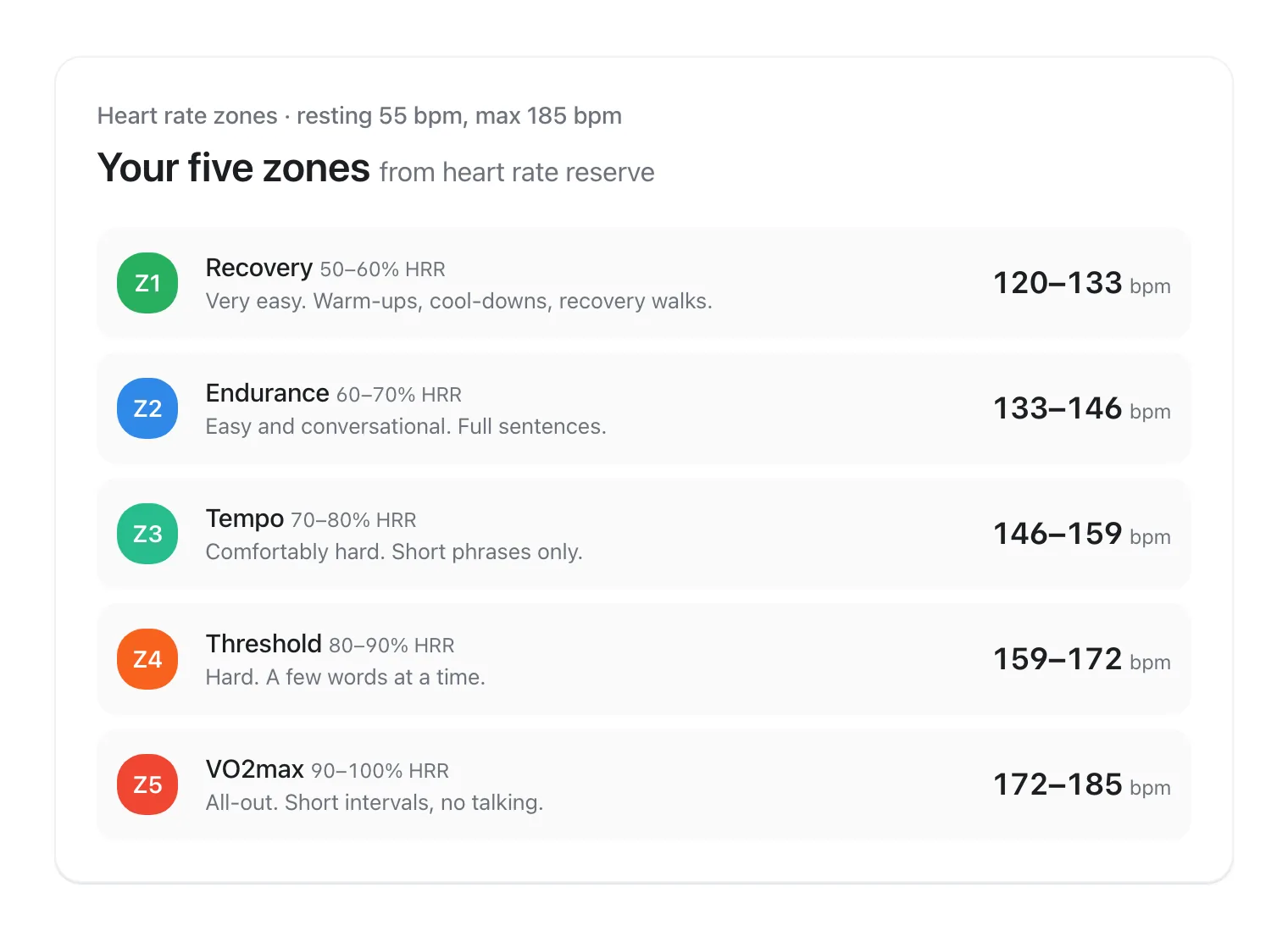
The names vary between apps and coaches, but the five-zone pattern is common. Zone 1 is very light, Zone 2 is easy and conversational, Zone 3 is moderate or "comfortably hard", Zone 4 is hard and close to your threshold, and Zone 5 is a near-maximal effort you can only hold for short bursts. A quick check is the talk test. In Zone 2 you can speak in full sentences, in Zone 3 only in short phrases, and in Zone 4 only a few words at a time.
How Apple Watch calculates your zones
Apple says its Heart Rate Zones are a percentage of your maximum heart rate, calculated and personalised automatically from your health data. They only appear if your date of birth is entered in the Health app on your iPhone, because your age is used to estimate your maximum heart rate. Apple doesn't publish the exact formula.
Other apps, including VedaWatch, use the heart rate reserve method, also called the Karvonen formula. Your reserve is your maximum heart rate minus your resting heart rate, and each zone is your resting heart rate plus a share of that reserve. Zone 2, for example, is resting heart rate plus 60–70% of the reserve. Because it includes your resting heart rate, this method tends to give fitter people, who have lower resting heart rates, slightly different ranges than a straight percentage of maximum.
So don't be surprised if two apps disagree by a few beats per minute. Neither is wrong. They're two reasonable estimates built on different formulas, and both depend most on your maximum heart rate.
Why your zones might feel wrong
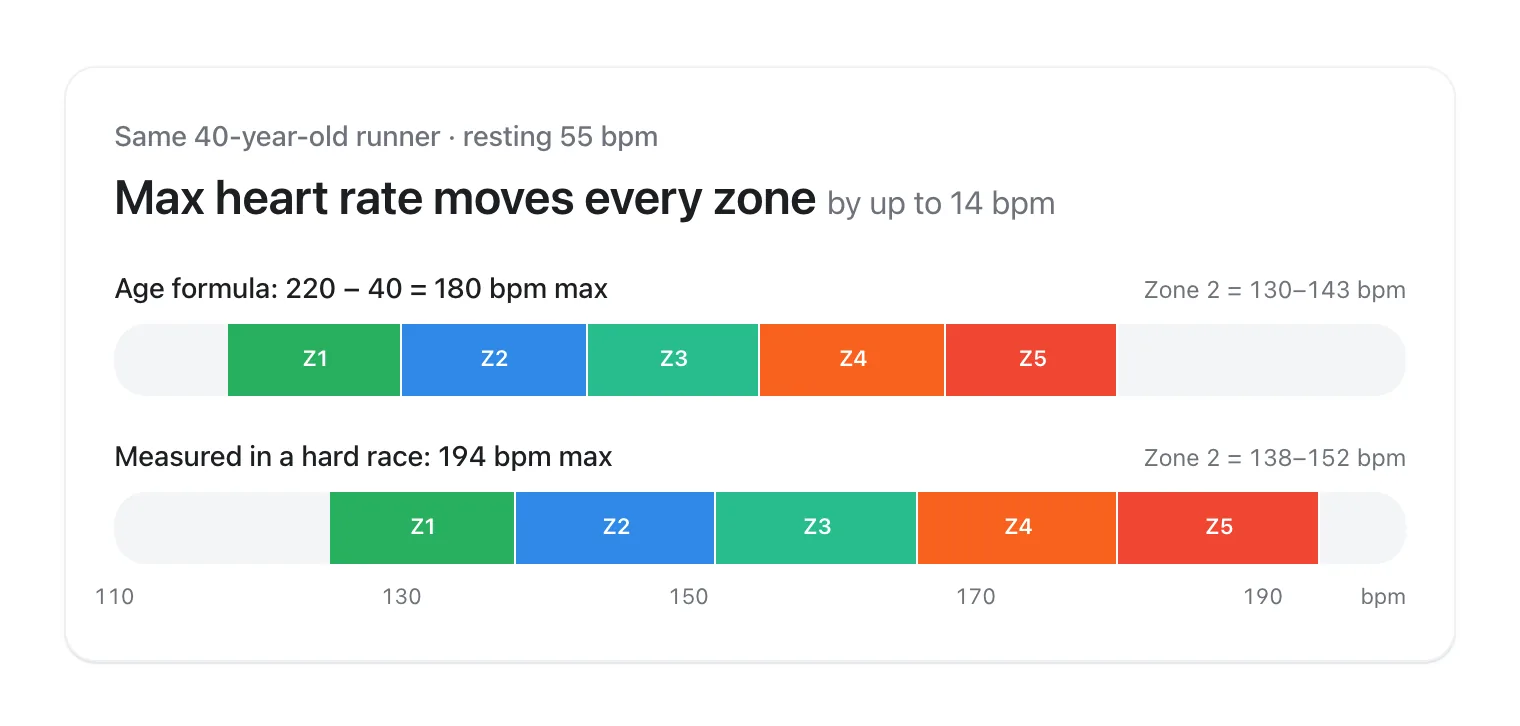
The weak link is maximum heart rate. Age formulas such as 220 minus age, or the newer 208 minus 0.7 × age, describe averages across large groups. For any one person they can be off by 10 bpm or more in either direction, and every zone moves with them.
If your real maximum is higher than the estimate, your zones will be set too low. Easy runs will keep showing up as Zone 3 or 4 even when you can chat comfortably. If your real maximum is lower, the opposite happens and hard efforts look easier on paper than they feel.
Other things shift your heart rate on the day without changing your zones: heat, dehydration, caffeine, poor sleep, illness, and the slow upward drift of heart rate during long sessions. If one workout looks off, don't change your zones because of it. Change them when the mismatch shows up week after week.
- Look back through your workouts in the Fitness app for the highest heart rate you've reached in a hard, all-out effort, such as the end of a race or a hill sprint. Ignore single spikes that don't fit the rest of the graph, which are usually sensor errors.
- If that number is clearly higher than your age-based estimate, use it as your maximum.
- Check your resting heart rate in the Health app (Browse → Heart → Resting Heart Rate) and use a typical recent value.
- Work out each zone from those two numbers, then check the result against the talk test on your next few workouts.
How to set manual heart rate zones on Apple Watch
By default, Apple Watch calculates your zones for you. If you've worked out better numbers, or a coach has given you zones from a lab or field test, you can enter them yourself. Apple lets you edit the limits of Zones 2, 3, and 4. Zone 1 covers everything below Zone 2, and Zone 5 everything above Zone 4.
- On your Apple Watch, open Settings and go to Workout → Heart Rate Zones. Or, on your iPhone, open the Watch app, tap My Watch, and go to Workout → Heart Rate Zones.
- Tap Manual.
- Tap Zone 2, 3, or 4 and enter the lower and upper limits in beats per minute.
- Do the same for the other zones, then start a workout to check the new ranges on the Heart Rate Zones view.
How to see your zones during and after a workout
Zones show up in cardio-focused workouts in the Workout app, such as an outdoor run. During the workout you can see your current zone live, and afterwards you can review how long you spent in each one.
- Start a cardio workout, such as Outdoor Run, in the Workout app on Apple Watch.
- Turn the Digital Crown until you reach the Heart Rate Zones view. It shows your current zone, heart rate, time in that zone, and average heart rate.
- After the workout, open the Fitness app on your iPhone, tap Sessions, then tap the workout.
- Tap Show More next to Heart Rate to see the estimated time spent in each zone.
How to use zones to balance your training
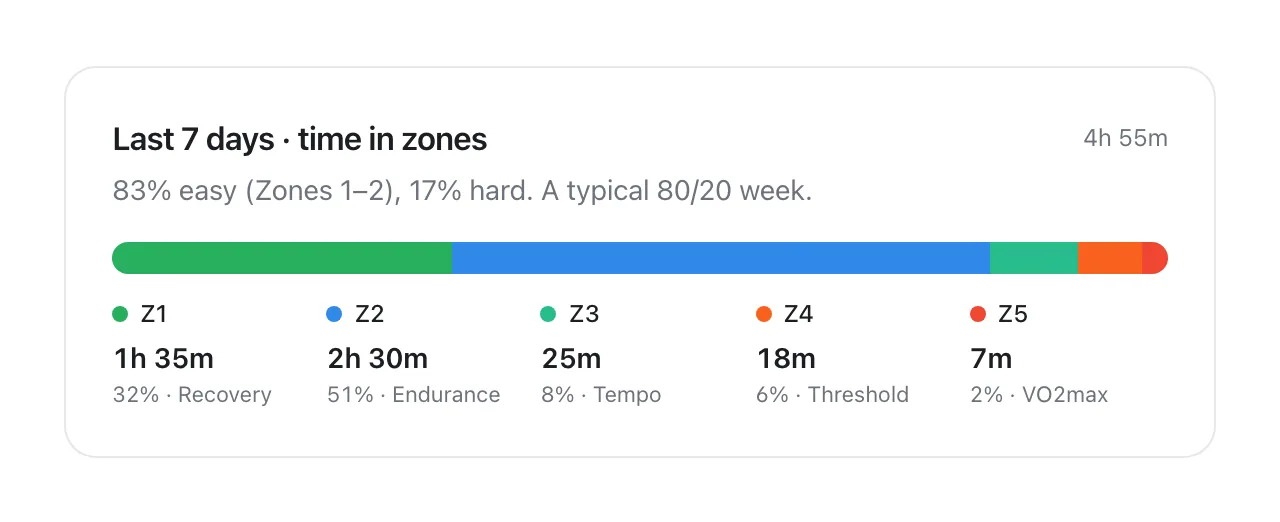
Single workouts tell you little. Your zones become useful when you look at a whole week. Research on endurance athletes describes a common pattern: roughly 80% of training at low intensity and about 20% hard, with relatively little time in the middle. This is often called polarised or 80/20 training.
Many recreational exercisers do the opposite without realising it. Their easy days drift into Zone 3 and their hard days aren't quite hard enough, so most sessions end up moderately hard. That middle ground is tiring but not especially effective. A weekly zone summary makes this pattern easy to spot.
You don't need to copy elite training to benefit. A practical approach is to keep most sessions in Zones 1–2, where you can hold a conversation, and make one or two sessions a week properly hard in Zones 4–5. For general health, the WHO recommends 150–300 minutes of moderate activity a week, or 75–150 minutes of vigorous activity, or an equivalent mix.
How accurate is Apple Watch heart rate for zones?
For steady efforts like an easy run or ride, wrist-based heart rate is generally reliable. In a 2017 study comparing wrist-worn trackers with an ECG, Apple Watch was among the most accurate devices tested, though accuracy for all of them dropped as exercise became more intense.
Wrist sensors struggle most with rapid changes in effort, such as short intervals, and with activities where your wrist flexes a lot, like rowing, weightlifting, or cycling on rough roads. The reading can lag behind your actual heart rate for a few seconds, which matters for short Zone 5 efforts.
A snug fit above the wrist bone helps. If you rely on zones for interval training, you can pair a Bluetooth chest strap with Apple Watch in Settings → Bluetooth, and the Workout app will use it for heart rate.
Common questions about heart rate zones
Why am I always in Zone 4 or 5 when I run? Usually either your maximum heart rate is set too low, which shifts every zone down, or your easy pace is faster than it needs to be. Check your zones against the talk test. If you can talk easily while the watch says Zone 4, your zones are probably too low.
Which zone burns the most fat? A higher share of the energy comes from fat at low intensities, but harder sessions burn more energy in total per minute. For weight loss, the total amount of exercise you can keep up week after week matters more than the zone.
Do my zones change as I get fitter? Your maximum heart rate barely changes with training, but your resting heart rate often falls. Your zones based on heart rate reserve will shift slightly, and you'll go faster at the same heart rate. Recheck your manual zones every few months.
Why don't I see the zones view? Make sure your date of birth is entered in the Health app and that you've started a cardio workout, such as Outdoor Run. Zones aren't available for every workout type.
See your time in zones with VedaWatch
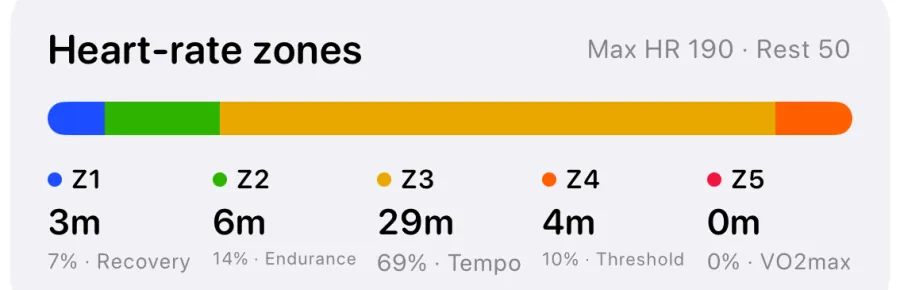
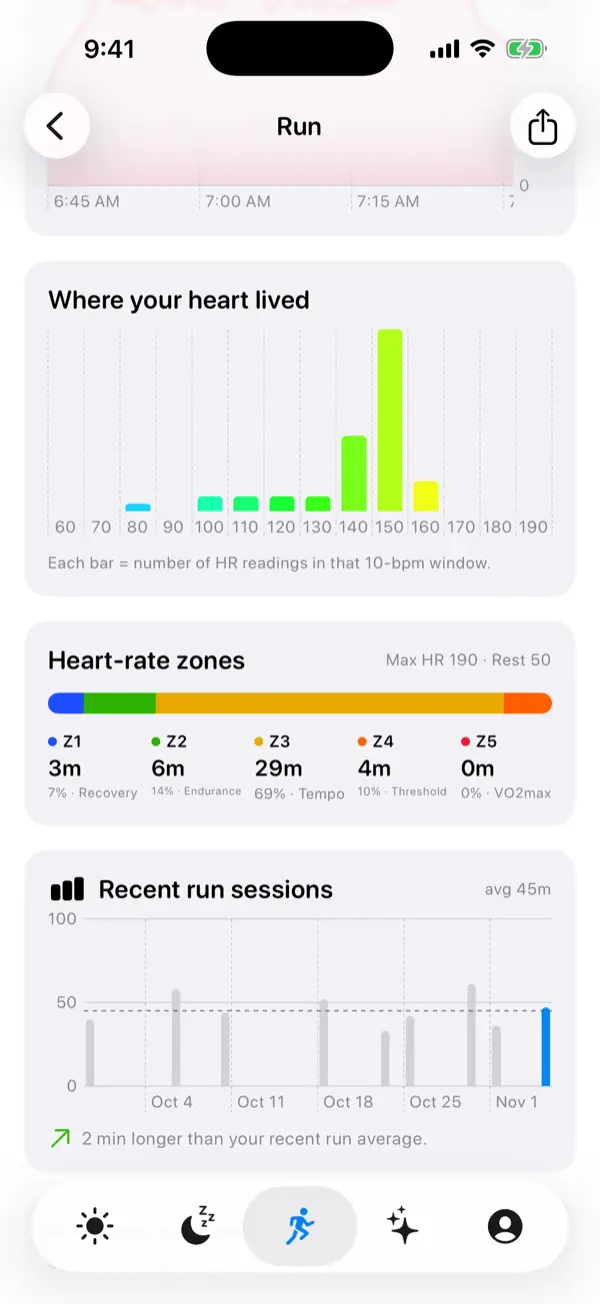
VedaWatch reads your workouts and heart rate samples from Apple Health and shows the time spent in each zone for every workout. Zones use the heart rate reserve method with your resting heart rate from Apple Health, so they shift as your resting heart rate changes.
For maximum heart rate, VedaWatch uses 190 bpm, or the workout's own peak if it went higher. If your real maximum is well below 190, its zones will run a little high, so treat them as a guide and use the talk test to check.
Time in zones pairs well with VedaWatch's training load and readiness. If your load is climbing and your readiness is low, keeping the next few sessions in Zones 1–2 is an easy way to keep training without digging a deeper hole.
Sources & further reading
- Apple Watch User Guide: View Heart Rate Zones on Apple Watch
- Journal of the American College of Cardiology (2001): Age-predicted maximal heart rate revisited (Tanaka, Monahan & Seals)
- International Journal of Sports Physiology and Performance (2010): What is best practice for training intensity and duration distribution in endurance athletes? (Seiler)
- JAMA Cardiology (2017): Accuracy of Wrist-Worn Heart Rate Monitors (Wang et al.)
- World Health Organization: Guidelines on physical activity and sedentary behaviour (2020)
This guide is educational, not medical advice, and has not been clinically reviewed. VedaWatch is not a medical device. If you have symptoms or concerns about your heart or health, contact a qualified healthcare professional.
Put your trends in perspective.
Explore HRV, sleep, and recovery with VedaWatch on your iPhone.
Download VedaWatch on the App Store →